AI Register
UserWhoever uses AI in a company should be able to show which measures they have taken for it: for AI literacy (Art. 4 AI Act), for labelling and transparency (Art. 50), plus data protection and co-determination. The AI register keeps an evidence file for this: the AI register with its approval list, the check of vendors, the measures with their participants, the transparency cases and the incidents. The file consists of notes in a dedicated vault of the knowledge base. You maintain it in the chat, CompanyWizard calculates the deadlines, reminds you through Tasks and hands out the file as an Excel workbook at the click of a button.
How the AI register is built explains why it is built the way it is.
The legal status of the bundled texts is 21 September 2026 (21.09.2026). Not legal advice. We recommend review by a lawyer.
The AI register is available on the web and in the desktop app. Its notes, the bundled knowledge and the text blocks are in German; the workbook it exports is German too.
Setting it up
Section titled “Setting it up”The AI register starts out not set up. An admin opens the navigation entry AI register; the page briefly explains what it is for and offers Set up AI register. The button creates:
- the vault KI-Nachweis. At first only admins may read it, because participant lists and incidents contain personal data,
- the folders for register, vendors, measures, transparency, incidents and policy, and the note
00 Übersicht.mdwith the company, contacts, review and the responsible user, - the folder
Wissen/with the bundled summaries and the fileTransparenz/Textbausteine.md(see “Knowledge and text blocks”), - the skill KI-Nachweis with its eleven sample prompts (see “Sample prompts”), which setup places in the skills folder and ticks under “My Skills” for the admin who ran setup.
If the skills folder is not writable, for example because it is a shared, read-only library, setup reports this with the advice to place the skill together with its prompts folder there by hand, and carries out the other steps.
If setup was interrupted or something is missing afterwards, the page says The setup is incomplete. and the button Complete setup adds what is missing. It does not overwrite anything that already exists.
If the AI register is not part of your edition, the page says The AI register is not part of your edition.
Step by step up to a filled-in overview: Set up the AI register.
The “AI register” page
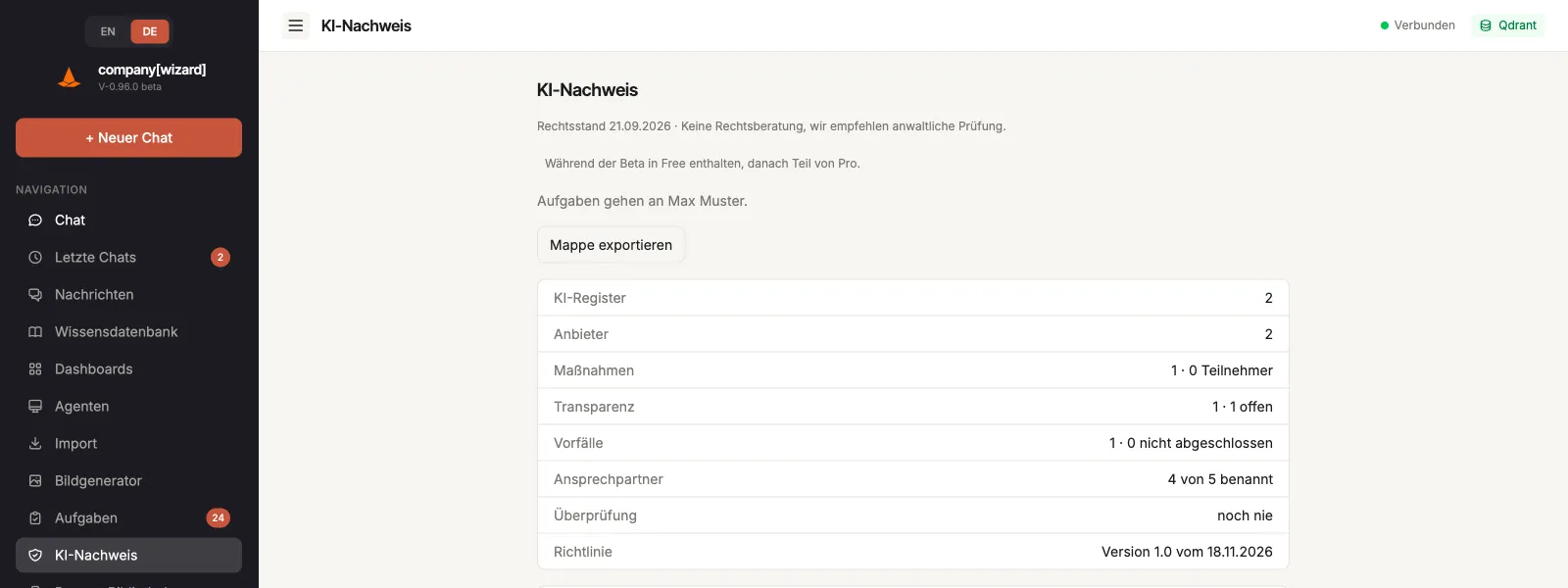
Section titled “The “AI register” page”Under the heading you find the legal status and the note “Not legal advice. We recommend review by a lawyer.” Below, the page sums up each part of the file in one line:
- AI register — number of applications,
- Vendors — number of vendors,
- Measures — number of measures and participants (for example “42 participants”),
- Transparency — number of cases and how many are open,
- Incidents — number of incidents and how many are unfinished,
- Contacts — how many of the five roles are named (“3 of 5 named”),
- Review — when the file was last reviewed (“never” if it never was) and, if a date is set, the next review (next: …),
- Policy — version and date of the policy entered (the measure of type “Richtlinie” (policy) with the latest date).
The block To do lists what falls due within the next 14 days or is overdue: the review of an application, the vendor check, the review of the file and the 72-hour deadline of an incident involving personal data. Overdue items are marked overdue; if nothing is open, it says Nothing due.

Under Not evaluable you find notes CompanyWizard cannot read, with path and reason, for example a value that does not exist for a field. Such a note never drops out silently; you correct it in the chat with the matching tool or in the note itself.
During the beta the AI register is included in Free, afterwards it is part of Pro; the page says so in one line.
What a reader without the admin role sees
Section titled “What a reader without the admin role sees”The page is open to every signed-in user; what they see depends on which entries they may read. A user without the admin role sees only the entries whose access stamp includes them. That is usually few, and the page often shows zeros: notes carry the access stamp of their creation, and opening the vault does not re-stamp existing notes. If they may not read every note, the page shows the hint The status covers only the entries you may read. They get the menu entry AI register as soon as the page shows a status for them. The buttons for setup and for updating the knowledge, and the notes about tasks, are visible to admins only.
A user with no access sees You have no access to the AI register.
Working in the chat
Section titled “Working in the chat”Tick the skill ki-nachweis under My Skills (setup does this for the admin who ran it). The tools of the AI register are then available in the chat, and you write in full sentences, for example:
From December we want to use the website chatbot from vendor C.
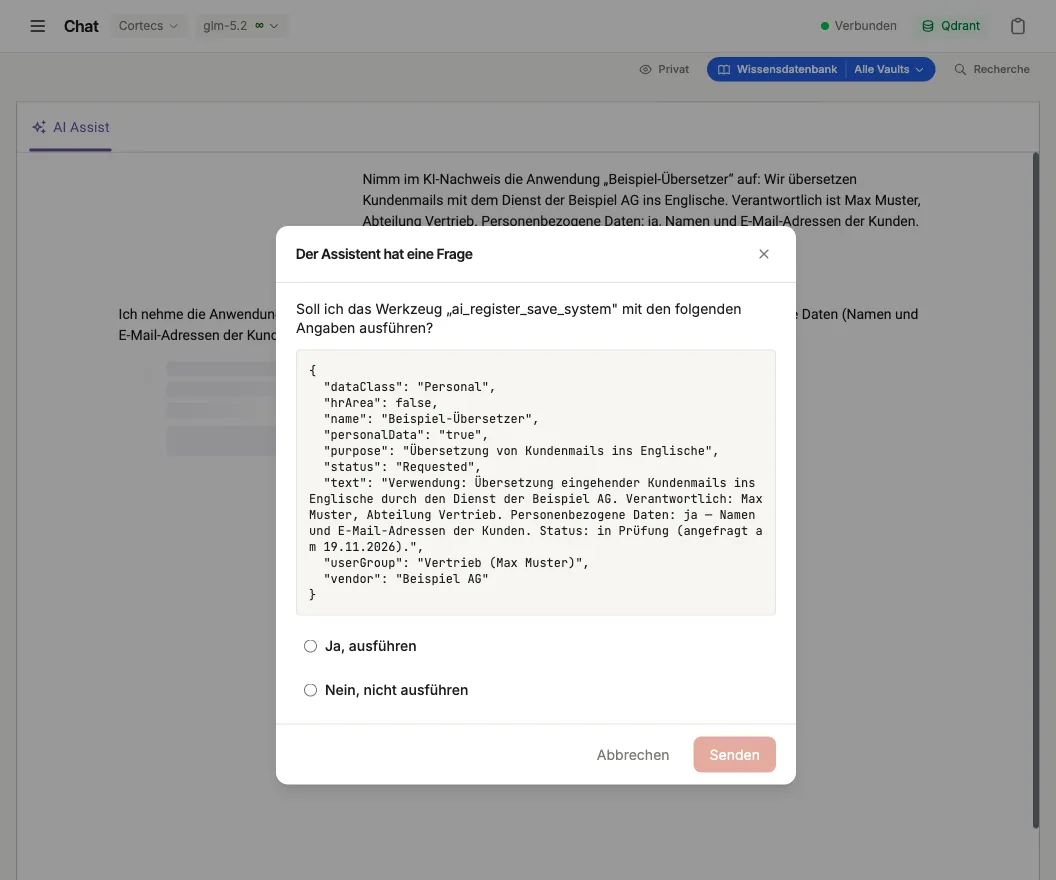
The assistant asks for what it does not know, proposes a risk class with a reason, and saves the entry only after you confirmed. The tick applies to your account and stays set until you remove it. Anyone who may read the vault can read; only admins may write, and you confirm every write like with any write tool.
The skill knows these procedures:
- Recording an application: purpose, user group, vendor, account type, highest permitted data class, HR area and the three corners (access to confidential data, contact with untrusted content, way out). As long as the vendor is not checked, the application stays in the status “requested”. Approving is possible only once the vendor is in the register and its result is “approvable” or “approvable with conditions”; otherwise the assistant offers the vendor check.
- Checking a vendor: the checklist item by item (contract type, data processing agreement, seat and data location, third-country transfer, training on customer data, retention, sub-processors, certificates, SSO, logging, deletion). What you do not know stays empty or “unclear”; the assistant does not guess.
- Reporting an incident: record it at once, even if details are missing. With personal data the tool names the end of the 72-hour deadline; the assistant passes it on unchanged and points to the data protection officer.
- Measure with participants, transparency case (duties under Art. 50, with a text block for the notice) and half-year review: the assistant works through the items under “To do” one after another and enters the review only when nothing is open any more or you want it that way.
Rules you can rely on:
- The name is the key of an entry. Before saving, the assistant checks whether the entry exists and uses its name; a different name creates a new entry.
- Deadlines, numbers and counts are calculated by CompanyWizard, not by the model.
- The assistant is instructed to invent nothing: what you did not say, it should ask for or leave out. It still derives some values itself, such as an immediate action or the review date. So read the details in the confirmation before you agree.
- There is no delete. An application that is no longer used gets the status “retired”.
- If a tool declines, the assistant gives the reason and the next step.
Step by step: Add an AI application to the register and Report an AI incident.
Sample prompts
Section titled “Sample prompts”The skill brings eleven sample prompts. Once you have ticked ki-nachweis under My Skills, they appear in the chat as a group of their own under Prompts (Prompts of a skill). Like the skill itself, they are in German, also in the English interface:
- Übersicht einrichten (set up the overview), Anwendung aufnehmen (register an application), Anbieter prüfen (check a vendor), Anwendung freigeben (approve an application), Maßnahme eintragen (enter a measure), Transparenzfall aufnehmen (record a transparency case),
- Vorfall melden (report an incident), Richtlinie erstellen (create the policy), Halbjahresprüfung (half-yearly review), Stand und nächste Schritte (status and next steps), Mappe ausgeben (export the register).
The order in which to use them for the first fill is shown in Fill the AI register for the first time.
A click puts the text into the input field and ticks the skill for this chat. If the prompt contains a variable such as {{anbieter}}, the Fill in Variables dialog asks for it first. You send as usual; the assistant asks for what is missing and saves only after you confirmed.
Übersicht einrichten is a fill-in text with company, address, number of employees, works council and the contacts, each line with ”…”. Fill in what you know in the input field. The prompt instructs the assistant to enter only the filled-in lines, to leave out lines still showing ”…”, and afterwards to name what the overview still lacks.
Where they come from. Setup creates the sample prompts together with the skill, in the skills folder under ki-nachweis/prompts/. If the AI register was set up before this version, the page shows an admin the notice Sample prompts of the skill “KI-Nachweis” are missing. “Update knowledge” creates them. (see “Knowledge and text blocks”).
Changing and hiding. The sample prompts are files. An admin changes them on the Skills page in the skill ki-nachweis, folder prompts. Three points you would otherwise only notice in operation:
- Hiding means emptying, not deleting. A file with no text after the header hides the prompt, and “Update knowledge” without the tick leaves it empty. A deleted file is created again by the next update. With the “replace skill” tick, the wording of an emptied file comes back as well.
- Renaming creates a duplicate. A renamed sample file counts as missing; the next update creates it again under the old name. If you want a different title, change the
title:line in the file. - Read-only skill library. If the skills folder is not writable, for example a shared library, the notice about missing sample prompts stays, and “Update knowledge” reports: Der Skills-Ordner ist nicht beschreibbar. Legen Sie den Skill „ki-nachweis“ samt dem Ordner „prompts“ dort von Hand ab. (the skills folder is not writable, place the skill “ki-nachweis” together with the folder “prompts” there by hand; this message appears in German).
Tasks for due items
Section titled “Tasks for due items”For every item under To do, the AI register creates a task itself as soon as the item falls due within the next 14 days or is overdue; an item without a date, for example a vendor without a check date, gets one at once. This covers the review of an application, the vendor check, the review of the file and the 72-hour deadline of an incident involving personal data. The comparison runs after every save in the chat and once an hour in the background; on the desktop only while the app is open, and it catches up at the next start.
- Recipient is the responsible user named in the note
00 Übersicht.md; setup enters the admin who ran it. If that user is not an active admin, the active admin with the lowest ID gets the tasks. The page shows the recipient (Tasks go to …) and says when the responsible user was replaced or is missing. Tasks whose assignee is no longer an active user are handed to the current responsible user. - Completion: a task completes itself as soon as the entry is right, for instance the check date is entered or the approval is re-dated. Enter the value instead of ticking off the task. A task you completed or discarded by hand does not come back while the note stays unchanged; the item remains under “To do” until the note is right.
- No tasks are created while the overview is missing or cannot be evaluated, in the licence’s read-only mode, with a vault that restricts admins (
EnforceRbacForAdmins), without an active admin, and on a paired desktop when the register is a vault of the server (then the server does it). The page names the reason.
These tasks do not use “Due from”: they appear as soon as the item enters the window; the date is in the title and text.
Knowledge and text blocks
Section titled “Knowledge and text blocks”Knowledge. The folder Wissen/ holds the bundled summaries, each with the legal status 21.09.2026:
00 Hinweis.md— note that CompanyWizard maintains this folder and that your own notes belong elsewhere,01 EU AI Act.md,02 DSGVO und KI.md,03 Digital Omnibus.md,04 Urheberrecht und KI.md,05 Betriebsrat und KI.md,06 Aufsicht und Nachweis.mdand07 Meldeweg.md.
If you ask why a duty or deadline exists, the assistant answers from these notes when the knowledge base delivers them. Switch on the knowledge base for the vault “KI-Nachweis” in the chat for that; otherwise the assistant says it found nothing and adds nothing from its own knowledge.
Update knowledge. A new program version can bring new versions of the summaries. If the folder differs from the installed version, the page shows an admin The bundled knowledge differs from the version of the installed release. The button Update knowledge asks first: The bundled files in the folder “Wissen” will be overwritten. If the file “Transparenz/Textbausteine.md” is missing, it is created. Missing sample prompts of the skill are created. You confirm with Update; afterwards the page says Knowledge updated. Files written: … Nothing is deleted, your own files in the folder stay. If you changed files there by hand, the update overwrites those changes. It requires that you may change the vault; in the licence’s read-only mode and with a server vault on a paired desktop the button is not there.
The skill. The question carries a tick box: Also replace the skill “KI-Nachweis” and its sample prompts with the bundled version. Your own changes to the skill and to the sample prompts are lost. Without the tick, “Update knowledge” creates missing sample prompts and leaves changed ones as they are. With the tick, it restores the bundled wording of the skill and of all eleven sample prompts. Nothing is deleted, your own files in the prompts folder stay. If the skill is outdated, the box is preset and the page shows A new version of the skill “KI-Nachweis” is available. If you changed or emptied sample prompts, the tick brings back their bundled wording; save your version first or untick the box. If only sample prompts are missing, the box is not preset; they are created without it. If you customised the skill and leave the box unticked, the skill keeps your version and the hint stays. It goes away when the header of your own skill says version: 7 (the current version of the bundled skill). After replacing, the page says The skill was replaced.
Text blocks. The file Transparenz/Textbausteine.md holds six ready-made notices for labelling, each with number, use, text and note:
- TB1 website chatbot, greeting,
- TB2 AI image without real persons,
- TB3 deepfake (realistic-looking person, voice, place, event),
- TB4 internal editorial note for AI-assisted texts,
- TB5 published text without editorial review,
- TB6 AI voice in a phone announcement or voicebot.
This file belongs to your company: setup creates it once and overwrites it neither when completing setup nor with “Update knowledge”. Adapt company name and contact in the texts, add your own rows and change them as suits you. Leave only the header row of the table and the order of the four columns as they are; otherwise CompanyWizard does not recognise the table. A transparency case names the number in its field “Textbaustein”; in the chat the assistant proposes a suitable block (through the register it sees number and use; it knows the wording only when the knowledge base is switched on for the vault) but does not write the file itself. The export copies the table into the sheet Textbausteine. On an installation that was set up before this version the file is missing at first: “Update knowledge” creates it; until then the sheet stays empty and the assistant names no block.
AI policy
Section titled “AI policy”The AI policy sets out how your company uses AI. CompanyWizard creates it as a note in the folder Richtlinie/ of the vault “KI-Nachweis”, from a template by evanto. The text is a template that your company adapts and puts into force itself. Not legal advice. We recommend review by a lawyer.
The individual steps are in the guide Create the company’s AI policy. The essentials:
- Creating it in the chat. Tick the skill ki-nachweis and write, for example: “Create our AI policy.” The assistant asks whether you want the short or the detailed version, which version number it gets and from when it is to apply. The short version has about 800 words, the detailed version about 2,900. How many pages that makes depends on the Word template. The note is created only after you confirmed the write, like with any write tool (tool Create AI policy).
- What CompanyWizard fills in. Company, address and contacts are taken by CompanyWizard from the register, and so is the approval list with the columns No., Application, Purpose, Status, Permitted data classes and Forbidden inputs. Both versions end with two annexes, Freigabeliste (approval list) and Ansprechpartner (contacts), each with the line “Stand: …”. Version and the date “valid from” come from your answers in the chat; the legal status is that of the shipped text. CompanyWizard includes the part on the works council only if the overview names a works council. The text of the policy is written neither by the model nor by the assistant.
- Gaps. What is missing in the register appears in the note as
[bitte ergänzen: …], never as an invented value, and the assistant names every gap to you. This concerns company, address, the contacts and an approval list in which no application is approved yet. If notes in the register cannot be evaluated, the approval list carries a hint about that too. If the note00 Übersicht.mditself cannot be evaluated, for example because of broken frontmatter, the gap “Übersicht nicht auswertbar” (overview cannot be evaluated) appears as well. Then correct the note that the page lists under Not evaluable and create the policy again with a new version. - Where the note lies. As
Richtlinie/KI-Richtlinie <version>.md. Each version is its own note; CompanyWizard never overwrites an existing note. - On the “AI register” page. The row Policy shows version and date, for example “Version 1.0 of …”, and never as long as there is no policy. Behind it stands the measure “KI-Richtlinie” with version, date and the path of the note as evidence. The row shows the measure of type “Richtlinie” (policy) with the latest date. If the measure could not be saved, the row stays unchanged although the note was created; the assistant then names the reason.
- Editing and exporting. Change the note in the knowledge base and export it there with Export as Word or PDF. If a Word template is stored, it applies here too: Export an answer as Word or PDF, Use a Word template for export.
- New version. Ask the assistant for a policy again and give a new version number. The old note stays.
- Who may do it? Whoever may write the register, that is admins, and only if they may also read every note of the register. It does not work in the licence’s read-only mode, nor on a paired desktop when the register is a vault of the server; then you create the policy on the server.
Exporting the file
Section titled “Exporting the file”Step by step: Export the AI evidence workbook.
Export register hands out the whole evidence file as an Excel workbook. Whoever may read every note of the register may export, admin or not. Whoever may read only part of it sees the hint The status covers only the entries you may read. and no button; there is no partial workbook. After the export the page says The register was exported as … The export remains possible in the licence’s read-only mode.
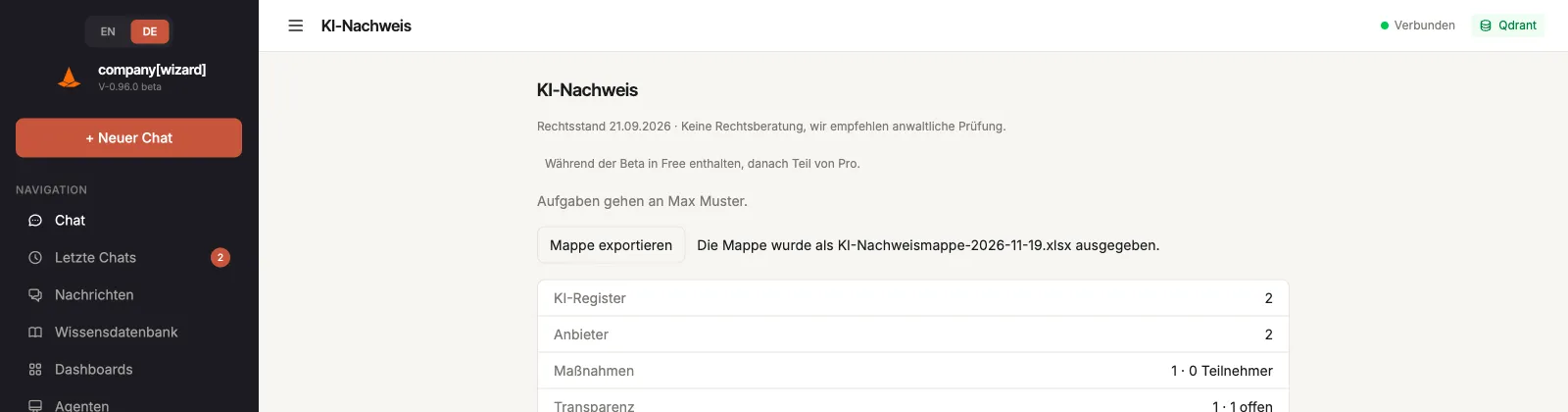
In the chat you get the same with the tool ai_register_export: ask the assistant explicitly for the file (for example for management, the data protection officer or an audit), and it passes on the link or the storage location from the answer. If a user may not read every note, the tool declines and the assistant points to an admin.
Layout of the workbook: ten sheets in the order Deckblatt (cover), KI-Register, Anbieter, Maßnahmen, Teilnehmer, Transparenz, Textbausteine, Vorfälle, Nicht auswertbar and Listen (the choice lists of the workbook). It has the layout of the Excel template from the AI basic training, with formulas and choice lists; Excel recalculates when it opens. If a sheet has more entries than prepared rows, the export continues format and formulas of the last row. The sheet Nicht auswertbar lists notes CompanyWizard could not read, with path and reason, so the export never silently leaves something out. More entries than the counting formulas of the workbook cover (around 5,000 per sheet) are declined with a message. Before handing the workbook out, the export calculates it. At usual sizes that takes a few seconds (measured: about 3 seconds for 100 measures) and grows with the number of measures: about 15 seconds for 500, more than two minutes at the upper limit.
In the sheet Vorfälle, the column with the notification deadline carries a fixed value for every incident involving personal data: the end of the 72-hour deadline as CompanyWizard calculates it. If you change the date “Kenntnis am” by hand in the exported file, this column does not follow. Rows without a notification duty keep the formula of the template (“knowledge + 3 days” in local time).
Limits & notes
Section titled “Limits & notes”- Link in the web chat: On the web, the tool hands out the file through a link that works for 24 hours and requires no sign-in, as with every document created in the chat. During that time anyone who knows the link can download the whole file. Do not pass it on. The file contains participant lists and incidents with personal data.
- Agent with a storage target: An agent with a storage target puts the workbook there. If the target is a vault, its members can read the workbook, even if they have no read access to the register itself. Set up such a target only deliberately. In a dry run the agent does not store the workbook.
- Paired desktop: On a paired desktop the AI register works only against a local vault. If the register is a vault of the server there, the chat does not write to it, the page shows a hint, and the server updates the tasks.
- Edition: During the beta the AI register is included in Free, afterwards it is part of Pro. See License & edition model. If the licence has expired and CompanyWizard is in read-only mode, the page and the export stay usable; setup, updating knowledge and everything that writes is blocked.
- Switch: A leftover
AiRegister__Enabled=falsein the configuration no longer has any effect. Menu entry, tools and the hourly comparison are therefore also back on installations that had switched the AI register off this way. - AI policy: The annexes “Freigabeliste” and “Ansprechpartner” are a snapshot with their date (“Stand: …”); they are not updated when the register changes. The current list is kept by the register, a new version of the policy generates the annexes anew. The text is a template that your company adapts and puts into force itself. The app has no acknowledgement of the policy by employees. The text of the policy is German in the English app as well.
- What does not exist yet: no PDF export of the workbook, no entry by employees themselves and no deleting of entries.
- Legal status: The bundled summaries and text blocks carry the legal status 21.09.2026. That is the status of evanto’s training material the summaries come from. The compliance articles carry 9 November 2026 because they were revised on that day; both are based on the AI Act as amended by Regulation (EU) 2026/1744. Not legal advice. We recommend review by a lawyer.