What you need to run it
AllCompanyWizard does not ship its own AI model — you bring your own access (bring your own key). The good news: one provider account is enough to start. It usually already covers the language model (LLM) and the embedding model for the knowledge base. Everything else you add only when you actually use that feature. This page is the map — the setup steps live in the linked articles.
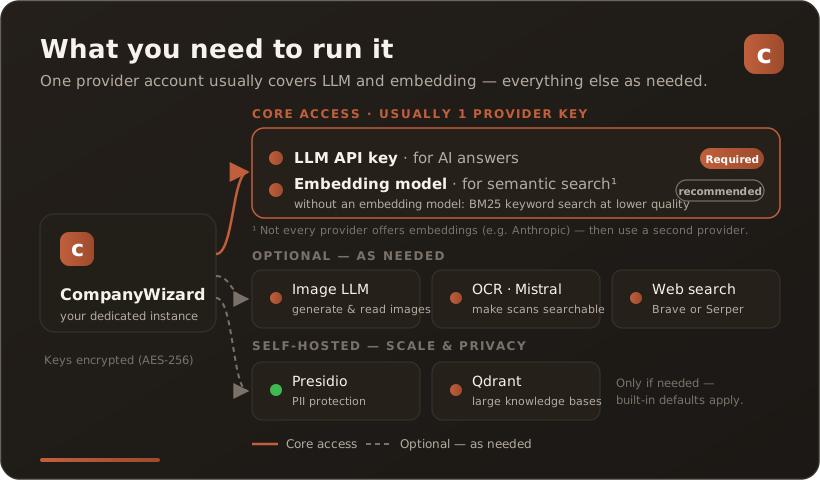
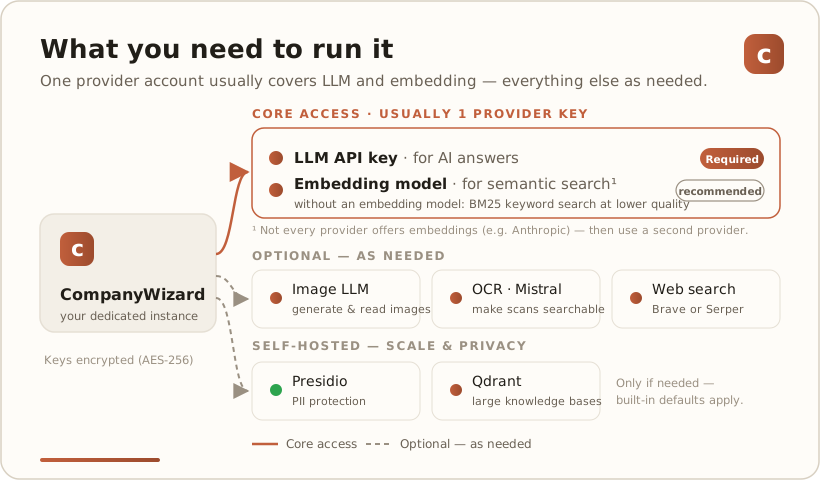
Core access: one provider key (LLM + embedding)
Section titled “Core access: one provider key (LLM + embedding)”The core is two things that usually come from the same provider bundle — one is required, one is recommended:
- LLM API key — required, for AI answers. Choose the provider that fits your data-protection situation first, then create the key.
→ Which LLM provider? · Create an API key - Embedding model — recommended, for the knowledge base. For the knowledge base CompanyWizard searches your documents semantically (by vector similarity) — that matches meaning far better than plain keyword search. Without an embedding model, BM25 keyword search kicks in automatically: ready to use immediately, but at lower result quality (especially for synonym questions). Most providers include the embedding in the same account.
→ RAG and search · Embedding models
Tip: In the provider catalogue under AI models you often configure image LLM and OCR per provider as well — so one key covers several capabilities.
Optional — as needed
Section titled “Optional — as needed”You only need these when you actually use the corresponding feature:
| Do you want to… | you need | Set up |
|---|---|---|
| generate or understand images | access to an image LLM (often in the provider bundle) | AI models |
| make scanned PDFs searchable | OCR access (e.g. Mistral, often in the provider bundle) | AI models |
| current knowledge from the web | web-search key: Brave or Serper (returns Google results) | Web search |
Self-hosted — for scale & privacy
Section titled “Self-hosted — for scale & privacy”You host these yourself — only if needed, otherwise the built-in defaults apply:
- Presidio — additional PII protection (pseudonymization).
→ Set up Presidio - Qdrant — vector database for larger knowledge bases; the standard installation uses the built-in SQLite-Vec.
→ Set up Qdrant
In what order?
Section titled “In what order?”- Choose a provider (privacy first) → Provider comparison
- Create and enter the key → API key
- Extend as needed — image LLM, OCR, web search, self-hosted building blocks.
All keys are stored encrypted (AES-256-GCM) and never shown in plain text.