First sign-in (OTP via email/SMS)
UserCompanyWizard works without a password. You sign in with a one-time passcode that you receive by email (or SMS) — more secure and without another password that can get lost.
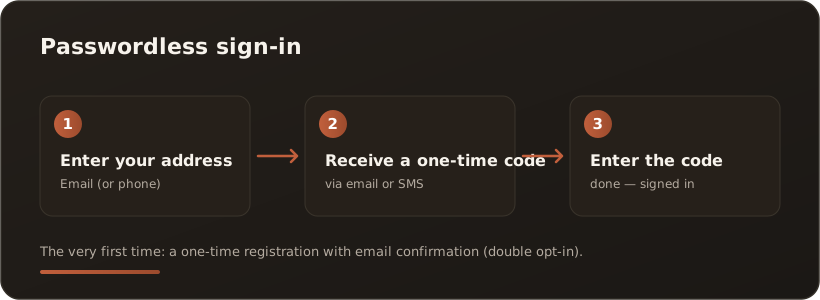
How to sign in
Section titled “How to sign in”- Enter your address — your email address (or phone number, depending on the configuration).
- Receive a one-time passcode — you get a code by email or SMS.
- Enter the code — type the code in, done. You are signed in.
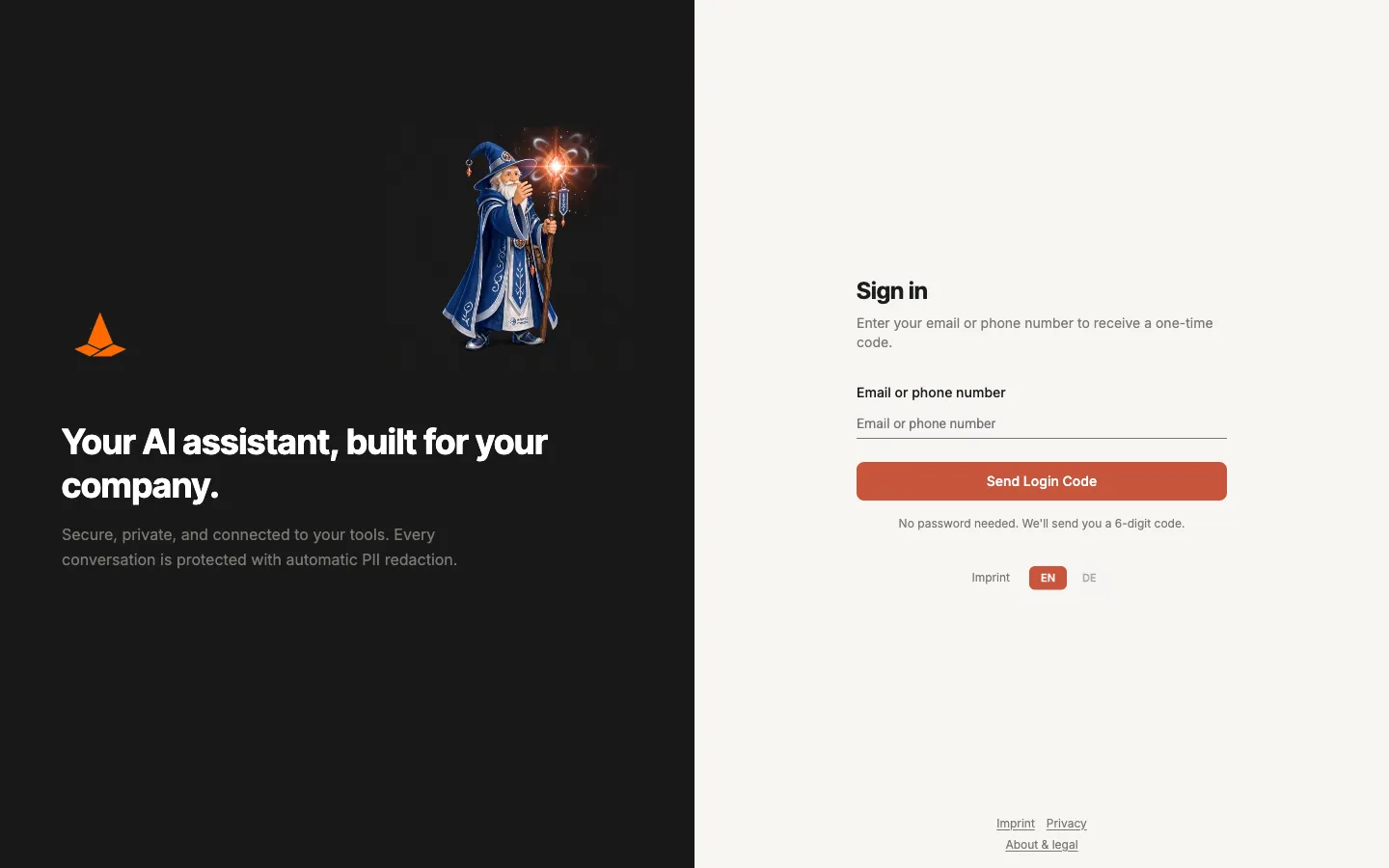
The sign-in screen: enter your email address and request a login code — no password needed.
Where does my account come from?
Section titled “Where does my account come from?”Signing in requires an existing user account — there is no password, only the one-time passcode. On a single workstation, your account is created as administrator during initial setup (Configure a single workstation). In a team, your administration creates your account; you then simply sign in with your email and the code.
Activate the Free license (single workstation)
Section titled “Activate the Free license (single workstation)”On first launch the desktop app shows an “Activate license” prompt. This is not the sign-in but the one-time unlock of your free single-user license — the app already runs on the Free tier even without activation. Activation is passwordless and takes two steps (double opt-in): enter email + company, confirm EULA and privacy policy → request code → enter code → activated. You can reach it anytime via the License area in the navigation. Details: Configure a single workstation, section “License & activation”.
Common questions
Section titled “Common questions”- No code arrived? Check the spam folder; the code can take a minute or two. Use Resend code to request a new one.
- Code expired? One-time passcodes are valid only briefly — just request a new one.