Chat
AllThe chat (menu item Chat) is the central workspace of CompanyWizard. Here you ask the AI questions, attach files, activate Skills and — invisibly in the background — draw on your knowledge base. This page describes what the chat can do; the individual tasks are linked in their own guides.
Interface
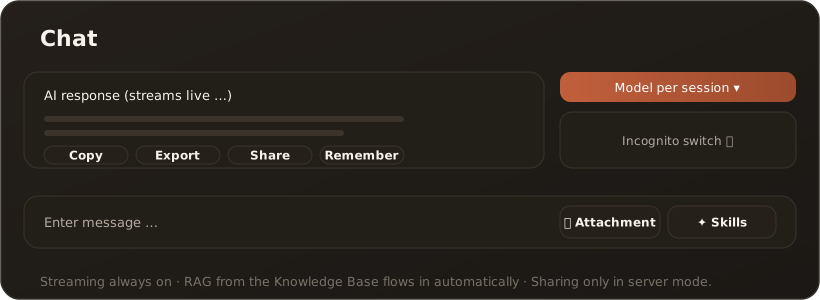
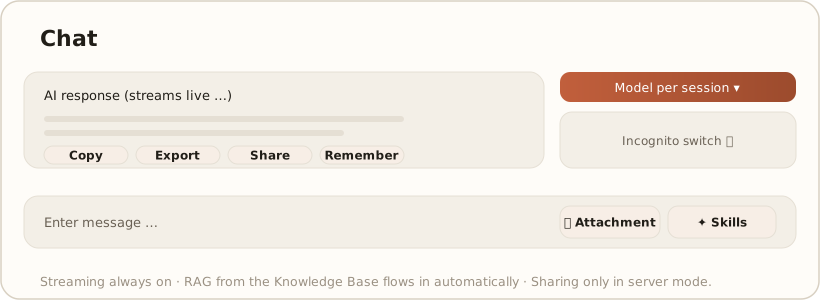
Section titled “Interface”The AI’s responses stream live into the conversation (token by token). Above the input line and in the sidebar you find the key controls: model selection per session, add attachment, select Skills, plus per response the actions Copy, Export, Share, “Remember this” and rating (👍/👎). An incognito switch (eye icon) disables personal memory for the session.
What the chat can do
Section titled “What the chat can do”- Pick a model per task — the model selection applies per session, not globally. → Switch the model per task
- Analyze files — text, code, PDF and Office files (
.docx/.pptx/.xlsx) up to 10 MB; Office content is extracted to Markdown. → Analyze a file in the chat - Use Skills — selected Skills are available to the AI during the session. → Activate Skills and use them in the chat
- Include the knowledge base (RAG) — relevant passages from your vaults flow automatically into the answer. → RAG & search
- Reuse a response — export it as Word/PDF or share it with colleagues. → Export a response
- Personal memory — “Remember this” stores noteworthy items; incognito mode turns capture off. → Personal Memory
Privacy in the chat
Section titled “Privacy in the chat”If the PII shield detects personal data in your input, a hint overlay points it out; the pseudonymization runs inside your instance. → The PII shield
Limits & notes
Section titled “Limits & notes”- Streaming is always on and cannot be disabled.
- Cost budget: if Administration has enabled limits and your monthly budget is reached, the next request is refused before the model call — with a notice to contact your administrator. → Limits (cost budgets & currency)
- Team messaging / sharing is available from Pro onwards in desktop server mode, or with Site (web). → Web vs. desktop
- Desktop-only: access to a working folder (file system) and Plan mode.
- Image generation is its own menu item (Image Studio), not part of the chat.
Related
Section titled “Related”- Analyze a file in the chat · Switch the model · Use Skills
- Knowledge base · Skills
- Agent delegation in chat — when the assistant hands a task to a special-purpose agent · Worked examples
- Visual answers: diagrams & charts — when the AI answers with structure or numbers
- Research mode — for enumerating questions that need to go through the entire knowledge base