Admin tab: AI models / providers
AdminIn the Administration → Models tab you define which AI services CompanyWizard uses. A provider is a vendor account: one vendor (OpenAI, Anthropic, Mistral …), one key. What the account is used for is determined by the models below it — each carries a modality (chat, embedding, image generation, OCR, rerank, image prompt optimization). One account can serve several modalities at once: a single OpenAI row with one key can cover chat, embedding and image, for example.
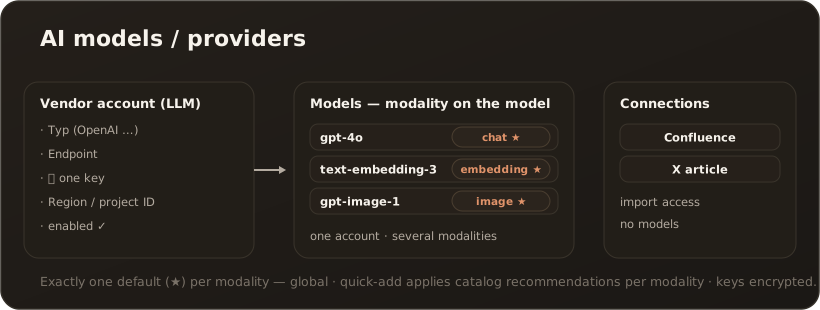
Quick-add
Section titled “Quick-add”The fastest way to a ready-to-use account: Quick add opens a three-step assistant.
- Choose provider — cards from the model catalog show, per vendor, whether an API key is required and how many models are recommended.
- Connect — enter the API key (with direct links to the vendor’s key management, sign-up and documentation) and test the connection.
- Choose models — the models the catalog recommends per modality (chat, embedding, image generation, OCR), preselected against the vendor’s live model listing. Per modality you tick which models to create; a model the vendor does not currently serve is flagged “not in listing”. You set the default per modality afterwards in the model editor.
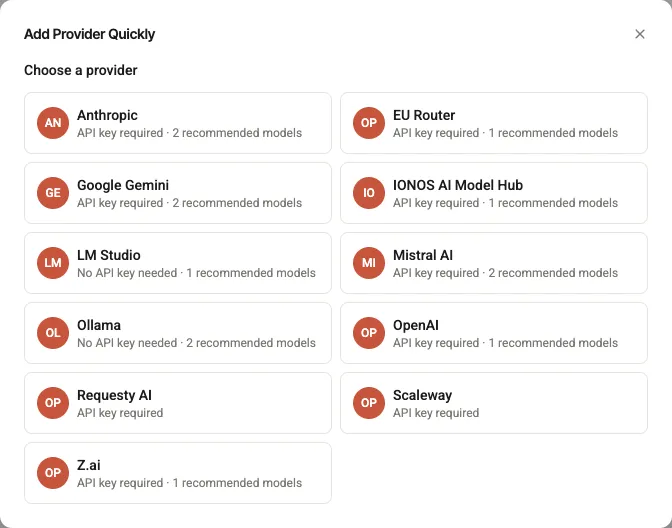
Step 1 of the assistant: pick a vendor from the model catalog — each card shows “API key required”/“No API key needed” and the number of recommended models.
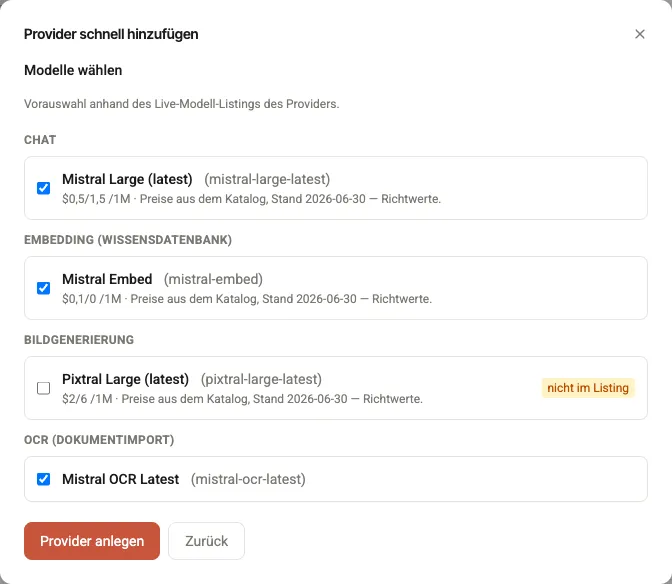
Step 3: the models recommended per modality as checkboxes; “not in listing” flags models the vendor does not currently serve. (German UI shown.)
Create provider creates the account with all selected models in one go. At least one model must be ticked — an account without models cannot be saved, because it would leave an empty model dropdown in chat. The assistant thinks along:
- If the vendor offers no embedding model, a hint points to the local index (BM25) as the fallback.
- If it offers no OCR model, a hint recommends adding Mistral as well.
- If an embedding model is activated, the assistant reminds you to restart + re-index.
- If a modality already has a default model, that default is kept — you can change it later in the model editor.
If the catalog is unreachable, create providers and models manually as described below.
Vendor accounts and connections
Section titled “Vendor accounts and connections”The provider list is split in two:
- Vendor accounts (category LLM) — vendor access with models, as described above.
- Connections — access for import (Confluence, X article). They carry no models; the models section is hidden there.
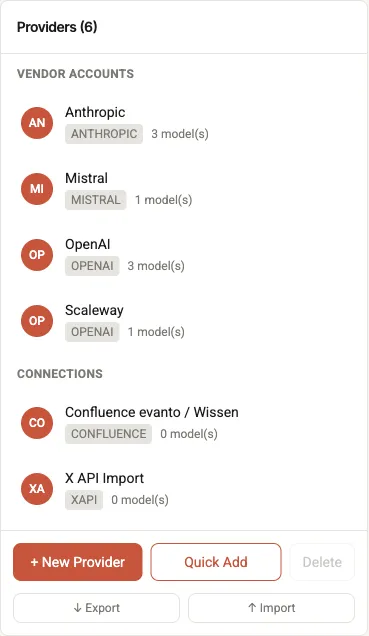
The provider list: vendor accounts (category LLM) with model counts on top, connections without models below.
Do not confuse: the separate admin tab Connections handles peer-server sync — here it is about import access.
Provider (account)
Section titled “Provider (account)”A provider has: Name, Type (e.g. OpenAI, Anthropic, Mistral), Category (LLM, Confluence or X article), Endpoint, Key (encrypted, see LLM API key) and, depending on the vendor, Region, Project ID, Secret Key and Auth mode. Use Enabled to switch it on/off.
Modalities (on the model)
Section titled “Modalities (on the model)”Every model carries a modality that determines its use:
| Modality | What for |
|---|---|
| Chat | Chat / language model (default) |
| Embedding | Vector embedding for the knowledge base’s RAG search |
| Image generation | Image creation (Image generator) |
| OCR | Text recognition during document import (e.g. Mistral OCR) |
| Rerank | Re-ranking of chat knowledge hits before the answer (Pro) → LLM re-ranking |
| Image prompt optimization | Text model for Enhance Prompt in the image generator; takes precedence over the default chat model. The lever for a fast, inexpensive model for this step. With reference images attached it must be able to read images (vision): while Only Managed-AI models → Images is on, CompanyWizard picks only such models, otherwise the choice is yours. |
The modality dropdown only offers what the vendor actually supports — Anthropic, for example, shows no image generation, while Mistral additionally offers OCR and rerank.
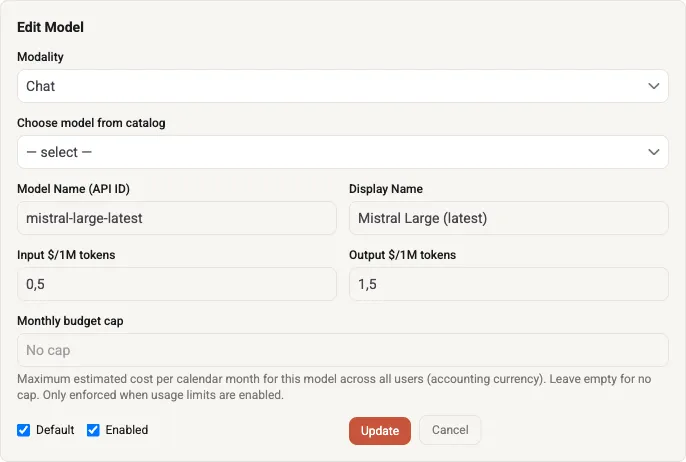
The model editor: the modality dropdown is vendor-filtered — for Mistral you can choose Chat, OCR, Embedding, Rerank and Image prompt optimization (no image generation).
Default per modality
Section titled “Default per modality”Each modality has exactly one default — globally across all accounts. If you set another model as default, the previous default of the same modality is replaced automatically; other modalities are untouched. The default chat model is the preselection in chat; users can switch there per session. → Switch the model per task
Only Managed-AI models (with Managed AI)
Section titled “Only Managed-AI models (with Managed AI)”If you booked Managed AI, the Only Managed-AI models switch decides whether your users are offered models with a key of your own as well — separately for Chat, Images and OCR. That keeps chat strictly inside the Managed AI package while a frontier model of your own remains available in the image generator.
- Where the switch is on, the lists show Managed AI models only. Providers with a key of your own stay configurable here, and so does the connection test — they are simply not offered to users.
- For chat it is more than a list filter: no chat call of the installation goes to a provider with a key of your own any more — not from agents, workflows, research, rerank or model comparison either. Where such a provider is pinned there, the function stops with a notice.
- If no Managed AI model is usable for a modality, its list stays empty and that modality’s AI functions do not work.
Which models your package brings for images and OCR is shown under Administration → Managed AI. → Managed AI: what it covers
Limits & notes
Section titled “Limits & notes”- Admin-only. Only Administration maintains providers/models.
- Keys are stored encrypted; test the connection before saving.
- Embedding consistency: you pick the active embedding model in the system settings from the models created here. If a vector store is already running, a change takes effect without a restart and the knowledge base is re-indexed automatically; only without a running vector store is a restart needed. → Vaults & indexing
- Data notice: the form states that the provider receives your users’ content (pseudonymized while PII protection is active — except reference images in the image generator, see Data protection with external image providers) and that the contract, legal basis and third-country safeguards are your responsibility for providers with a key of your own. For Managed AI, evanto supplies the access and is itself the processor for it. → What your providers receive
- PII: the checkbox “Trusted embedding provider — receives original PII values” takes effect only on the active embedding provider’s row — there on vector search and, with scrub before embed enabled, on indexing. On every other row it has no effect; for connections both the notice and the checkbox are hidden. → Trusted targets (PII egress)