Create a private vault (desktop)
UserOn the desktop, as an ordinary user — without an admin role — you can create your own private vault: a bounded knowledge area that only you can see. It is ideal for personal notes, drafts and research that you want your chat’s knowledge base to draw on (RAG) but that is nobody else’s business.
Vault basics: Knowledge base & vaults. How a private vault differs from shared vaults (admin/RBAC) and the personal area is covered there in the section on vault kinds.
Desktop only
Section titled “Desktop only”This capability exists in desktop mode only (standalone or server-paired). It does not exist in the web application — there, administrators manage vaults centrally. → Web vs. desktop
Create a private vault
Section titled “Create a private vault”- Open the Knowledge page and the vault selection menu at the top.
- Click the plus button “Create vault” next to the vault picker (visible in desktop mode only).
- Enter a name and optionally a description, then confirm with “Create”.
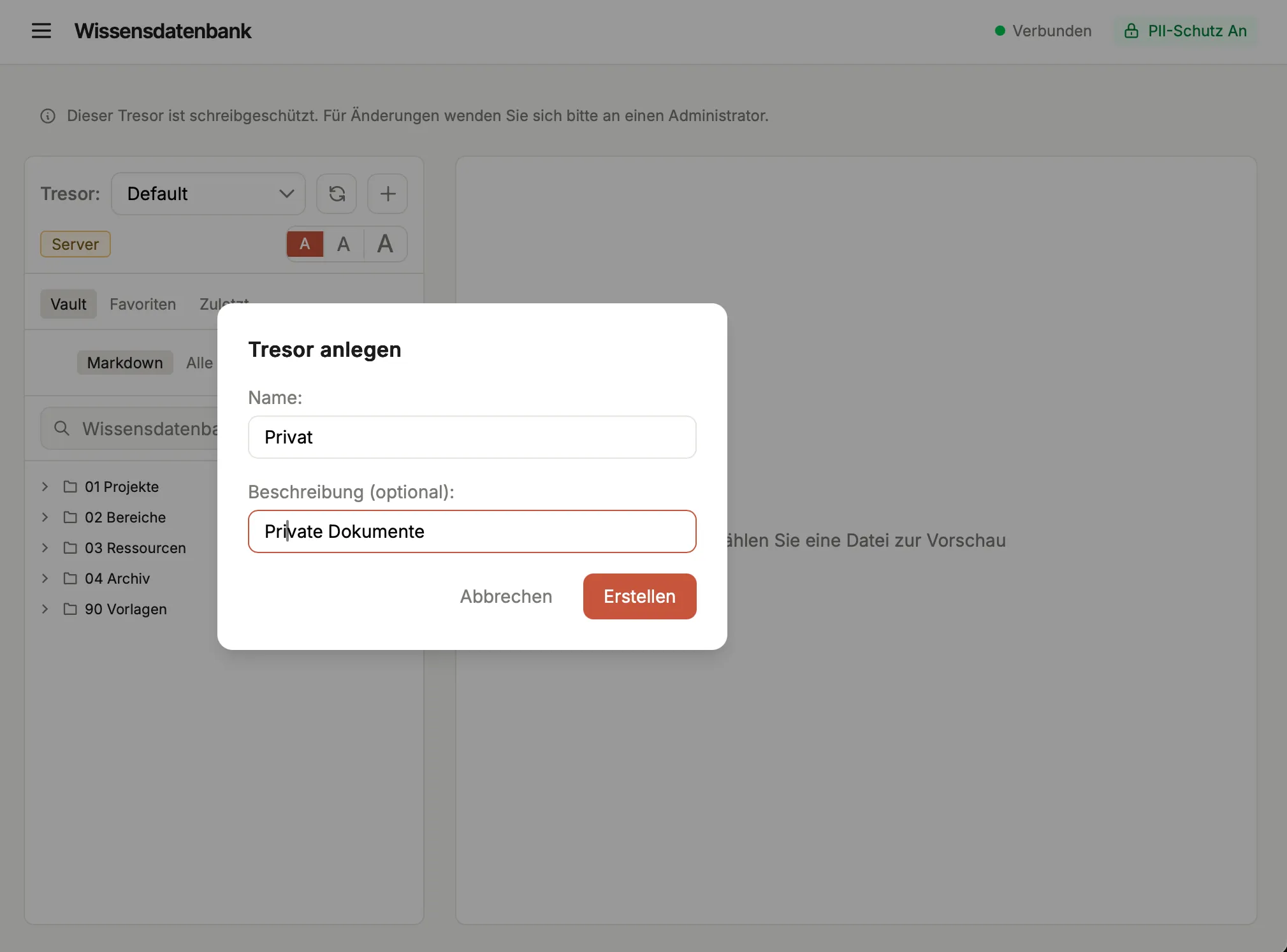
The create dialog: only a name and optional description — opened via the plus button next to the vault picker. (German UI shown.)
The vault appears in your picker straight away and carries the “My vault” badge — that is how you recognise your own, private vault (tooltip: “Private vault — only visible to you”).
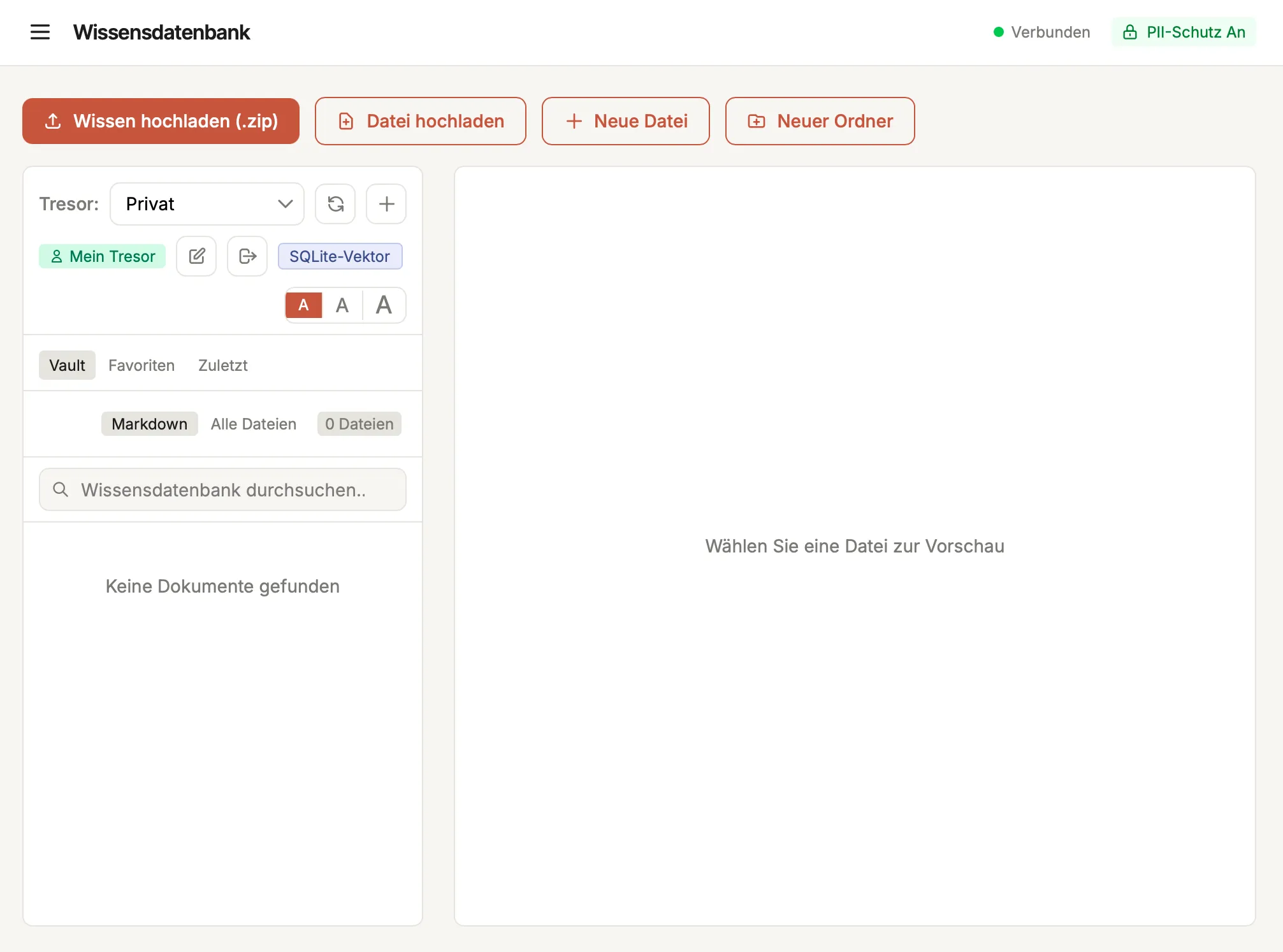
Your own private vault: the “My vault” badge and the rename and unmount actions appear next to the vault picker. (German UI shown.)
Behind the scenes CompanyWizard creates a folder by the convention <knowledge root>/<slug>; the slug is derived from the name. If the slug already exists, a suffix is appended automatically (notes, notes-2, …). Because only this convention is stored — not a fixed path — the vault also survives restoring a backup onto a machine with a different data directory.
Visibility: truly only for you
Section titled “Visibility: truly only for you”A private vault is visible only to its owner — everywhere:
- in the vault list and the knowledge browser,
- in search,
- in chat-RAG (the AI only quotes from it when it is you),
- via connected MCP servers, and
- in image resolution (image-RAG).
Administrators cannot see your private vault either — not in lists, not in search, not in RAG. All of these routes go through the same access check, and the owner rule takes effect before any admin bypass. This is by design: your private vault stays private.
Writing & using
Section titled “Writing & using”Your own vault is writable: you can save and edit notes, store files and images, and import documents. Like any accessible local vault it takes part in chat-RAG — so the AI uses it as a knowledge source when you have it selected.
Rename
Section titled “Rename”Via the “Rename vault” button you change the display name in the “New name:” field. The slug and the folder stay unchanged, so existing links (kb: / [[wikilinks]]) keep resolving.
Unmount
Section titled “Unmount”Via “Unmount vault” you remove the vault from the app again. The confirmation dialog says it plainly:
“Vault name” will be removed from the app and its search index. No files are deleted.
Specifically: the vault disappears from the app (database), from the full-text index and from the vector index. The folder with your notes, however, stays on disk — under “Your files remain at:” the dialog names the exact path. Confirm with “Unmount”.
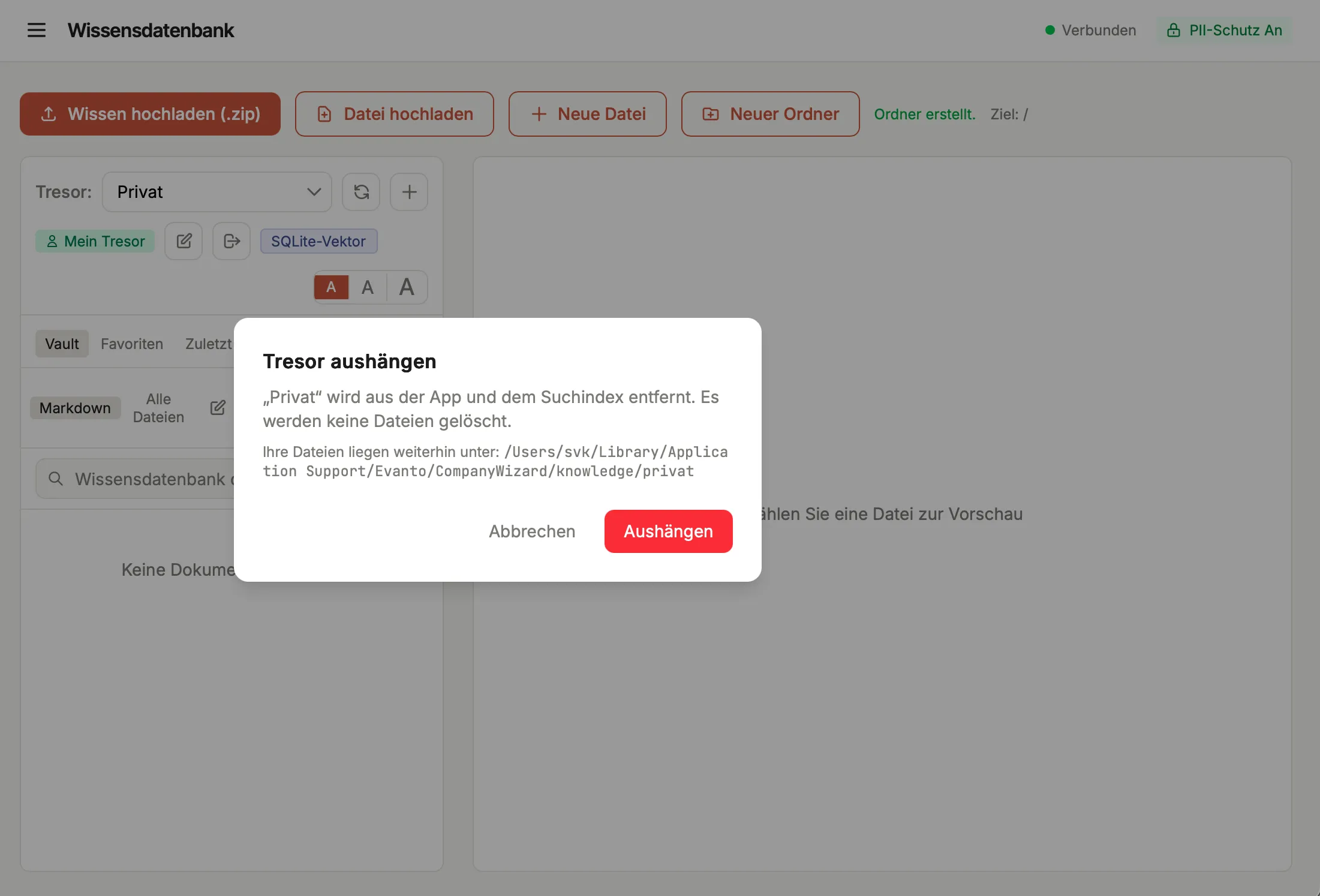
Unmounting removes the vault from the app and search index — the folder with your notes stays, and the dialog names the path. (German UI shown.)
Limits
Section titled “Limits”- Desktop only: standalone or server-paired; the feature does not exist in web mode.
- Not shareable: a private vault cannot be shared or distributed via pairing — it stays local and private.
- Unmount is terminal: there is no re-attaching an unmounted vault and no mounting of external folders. The folder is preserved, but the app does not mount it again.
Related
Section titled “Related”- Knowledge base & vaults · Web vs. desktop
- For administrators: Create a vault and grant access rights