Prompt library
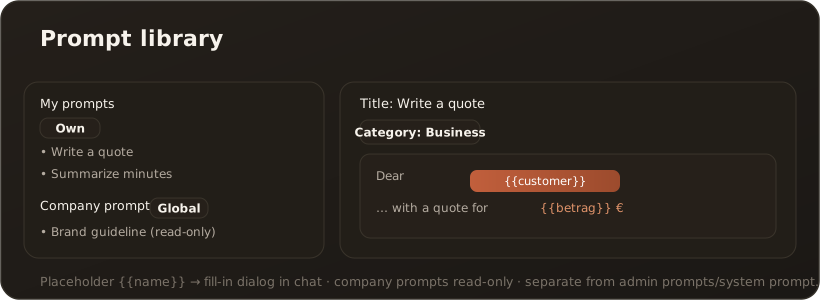
UserThe prompt library (menu item Prompt library, route /prompts) stores reusable question and instruction templates. So instead of rewriting proven phrasings every time, you select them and just fill in the blanks.
Interface
Section titled “Interface”On the left you see two groups: My Prompts (badge “Own”) and Company Prompts (badge “Global”). You edit your own Prompts on the right in the form with title, category and content; company Prompts are shown read-only with a note that administrators manage them.
What the prompt library can do
Section titled “What the prompt library can do”- Own Prompts create, edit and delete — stored per user.
- Company Prompts use — maintained company-wide by administrators, visible to everyone (read-only).
- Placeholders — using the syntax
{{name}}(e.g.{{customer}},{{date}}); when applied in the chat, a dialog appears for filling them in. - Categories — from General through Writing, Analysis, Code to Translation and Own.
- Apply in the chat — select a Prompt, fill the placeholders, the text lands in the input. → Create and apply a prompt template
Distinction
Section titled “Distinction”The prompt library should not be confused with two admin areas: Administration → Prompts maintains the company-wide (global) Prompts; Administration → System prompt defines the base instruction that flows into every chat and is not user-selectable.
Limits & notes
Section titled “Limits & notes”- Company Prompts are read-only for users.
- Available in web and desktop.