The PII shield — pseudonymisation & re-identification
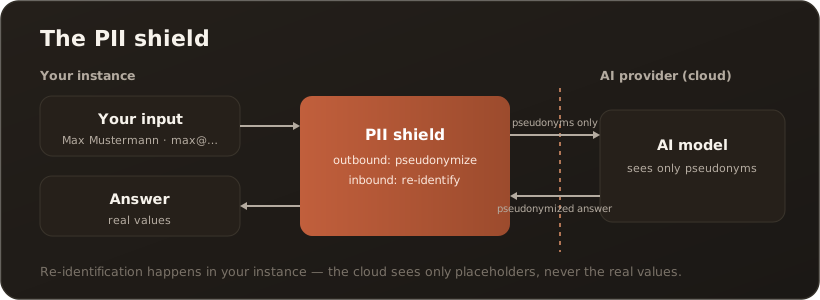
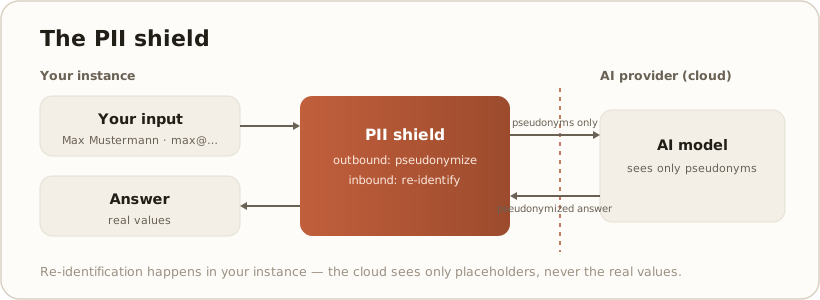
AllThe PII shield makes sure that detected personal data (PII) only leaves your company as placeholders — in the background, without any action on your part, as long as it is switched on. This is risk reduction, not a guarantee (see Limits below). It works in two stages: first pseudonymize, then re-identify after the AI’s answer.
Why it exists
Section titled “Why it exists”AI models often run at external providers. Without protection, names, addresses or phone numbers from your messages and documents would be transferred there. The PII shield prevents this without the AI losing usefulness — it simply works with placeholders instead of real values.
How it works
Section titled “How it works”- Detect — before sending, CompanyWizard scans your message (and attached files) for PII: names, email addresses, phone numbers, postal addresses as well as further categories configured by the administrator.
- Pseudonymize — each match is replaced by a labeled placeholder, e.g.
Max Mustermann→[NAME_1],max@example.com→[EMAIL_1]. Only this pseudonymized text goes to the AI model. - Re-identify — when the answer comes back, CompanyWizard automatically replaces the placeholders with the original values again. You see the correct names and details; the AI never saw them.
What you notice
Section titled “What you notice”- The shield in the header (on phones in the ⋯ menu) shows the state: “PII Shield On”, “PII Shield Degraded” (detection service unreachable, only simple pattern matching active), “PII Shield Error” or “PII Shield Off” (see below). In the “Degraded” and “Error” states, a click re-checks the connection.
- When the shield detects something, the chat says so with a notice such as “PII detected: … Content was anonymized before sending to AI.”
- The protection applies to file attachments too.
- Whether it runs is up to the administration. In the web version detection is switched on out of the box. In the desktop app it is off out of the box: you switch it on in the setup wizard (step “PII Shield”) or later in the system settings — both require a Presidio service. A desktop app paired with a server takes the setting from the server. While detection is off, no shield is shown. → Set up Presidio
Switching the protection off on purpose: “PII Shield Off”
Section titled “Switching the protection off on purpose: “PII Shield Off””Sometimes the AI needs the real values — for instance to draft a letter to a specific customer. For that, the shield can be switched off temporarily:
- Clicking the shield switches it off until you switch it back on. The arrow next to it lets you pick a duration instead: “Next message only”, 10 min, 1 hr or “Until I switch it back on”.
- The shield shows the state: “PII Shield Off · 1 message”, “PII Shield Off · until 2:30 PM” or simply “PII Shield Off”.
- While it is off, no detection takes place — for everything you send during that time: message, attachments, knowledge context (RAG), tool results and the search query to the knowledge base. The provider receives the real values.
- This also applies to imports you promote during that time — single and batch. Even if pseudonymization is active for embeddings, these documents still go to the embedding provider and into the search index without placeholders. → PII pseudonymization for embeddings
- The switch only appears while the shield works properly — not in the “Degraded” or “Error” states.
For administrators: the switch is allowed by default. Under Administration → System settings → Presidio (PII Detection) you lock it with “Allow users to switch the PII shield off for their own messages”. Once unchecked, the switch disappears and CompanyWizard scans every message — even if a client asks otherwise. Turns sent with the shield off appear in the PII audit logs under the source “Bypassed”. → Admin tab: Audit log (PII)
Four egress paths
Section titled “Four egress paths”The same shield applies wherever text leaves your instance towards the AI. With protection switched on:
- Chat prompts — your messages and attachments. ✓
- Knowledge context (RAG) — the passages retrieved from the knowledge base before they go to the model. ✓
- Tool results — what reading tools return to the AI, before it enters the history; in the chat as well as for agents. ✓ — with deliberate exceptions (e.g. workspace and calendar tools, tools an admin marked as PII exemptions). → Keeping confidential data local
- Embeddings — the calls to the embedding provider when indexing and searching. By default real values go to the provider here; administrators can pseudonymize this too via an opt-in. → PII pseudonymization for embeddings
Image generator: detected PII reaches no model here either — neither the text model in Enhance Prompt (your input and excerpts from your vaults) nor the image model on Generate, Generate Directly and Refine. Unlike in chat, CompanyWizard does not put the real values back there: the enhanced prompt shows placeholders such as [PERSON_1], and that is how it goes to the image model. Real names only get into the image if you switch the shield off first. The shield does not check reference images — it analyses text, not images. → Data protection with external image providers
What your providers receive
Section titled “What your providers receive”The shield removes detected personal values — not the content. Every AI provider you set up under Administration → Models receives your users’ content: chat input, knowledge-base context and attachments. That is, after all, what it is called for.
That is why CompanyWizard shows this notice wherever a provider is created — in the provider form, in the “Quick add” assistant and during the desktop app’s first-time setup:
This provider receives your users’ content — chat input, knowledge-base context and attachments (pseudonymized while PII protection is active). The contract, legal basis and third-country safeguards with this provider are your responsibility (License Terms § 7 (1)).
What this means for you:
- The contract with the provider is yours. You conclude it, you settle the legal basis, and for providers outside the EU you put the required third-country safeguards in place. evanto is not a party to these provider contracts — for access you integrate yourself, in self-hosted and managed operation alike. → GDPR & DPA
- This does not apply to Managed AI. There evanto supplies the access — and is itself the processor for it (License Terms § 14 (2)), not you. The notice addresses provider access you integrate yourself. → Managed AI: what it covers
- “Pseudonymized” does not mean “nothing”. Names, addresses and numbers are replaced; the subject matter goes along. And on the embedding path, document text leaves in the original by default (see above).
- For connections such as Confluence or X articles the notice does not appear — they deliver content to CompanyWizard, they do not receive any.
Limits — honestly
Section titled “Limits — honestly”Detection relies on pattern recognition. It can miss unusual formats or occasionally produce false matches. When in doubt, do not enter highly sensitive data into a message in the first place. The PII shield is a strong layer of protection, not a substitute for care.
Also: “external = placeholders” holds but not without exception. Administrators can mark individual targets — an MCP server, a configured tool, the active embedding provider — as trusted; those then receive the original values instead of placeholders. On a provider the checkbox only takes effect on the row that currently supplies embeddings — on a chat-only, OCR or image provider it has no effect. By default no target is trusted, and an audit list in the system settings shows which ones are. → Trusted targets (PII egress)
Related
Section titled “Related”- Analyze a file in the chat — attachments also pass through the shield
- Trusted targets (PII egress) — where admins open the trust boundary per target
- Keeping confidential data local — what goes out in plain text, and when only a local model helps
- Go deeper: RBAC & confidentiality levels (Concepts)