Export an answer as Word or PDF
UserA chat answer can be saved in a few clicks as a cleanly formatted Word or PDF document — optionally polished beforehand by the AI and tagged with your own metadata.
Step by step
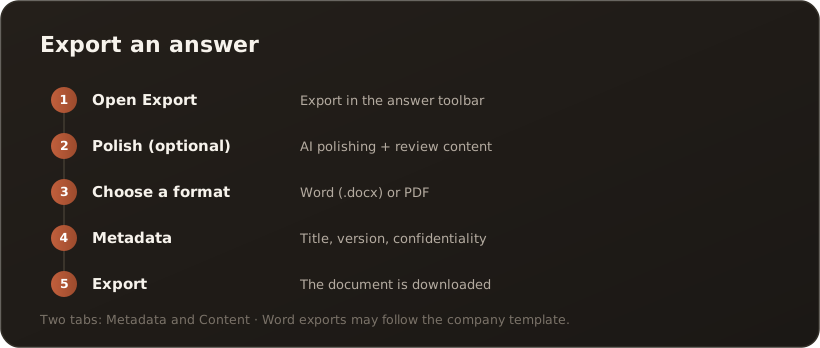
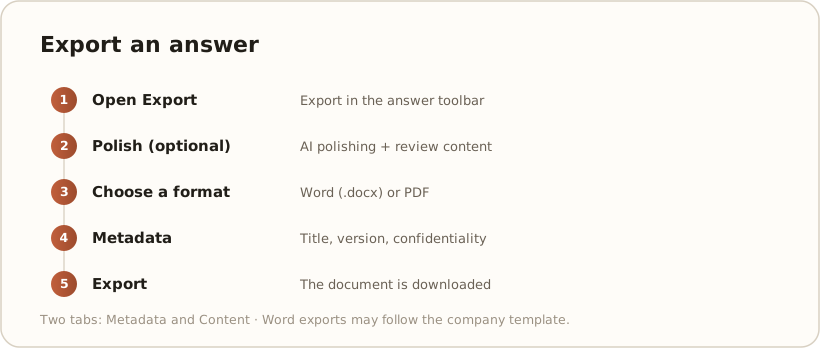
Section titled “Step by step”- Open Export — hover over the answer and click Export in the answer toolbar.
- Polish (optional) — via AI polishing the AI smooths the text for a document; with Review content you see the result beforehand and can adjust it in the Content tab.
- Choose a format — Word (.docx) or PDF.
- Add metadata — in the Metadata tab, set title, version and confidentiality level.
- Export — the document is generated and downloaded.
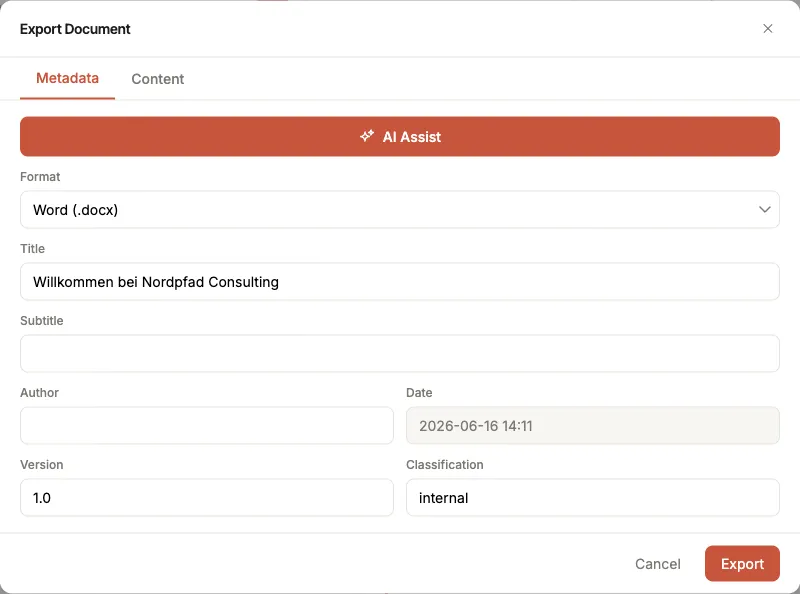
The export dialog, “Metadata” tab: at the top the AI polishing, below it the format and metadata.
Good to know
Section titled “Good to know”- Two tabs: Metadata (format, title, version, confidentiality) and Content (fine-tune the text before export).
- Company layout: If your Administration has set up a Word template, Word exports automatically appear in the corporate layout — see Use a Word template for export.
- Reuse: You can add the exported document back into the knowledge base via the Import page, for example.
What’s next
Section titled “What’s next”- Export a response as PowerPoint — same procedure, format PowerPoint (.pptx) with an optional AI slide outline
- Export a response as Excel — format Excel (.xlsx), appears only for answers that contain tables
- Save a chat answer to the knowledge base
- Import a document and publish it