Use a Word template for export
UserAs an administrator you set up a Word template once. After that, all chat answers exported as Word automatically appear in your corporate layout (letterhead, fonts, colors) — users don’t have to change a thing.
Step by step
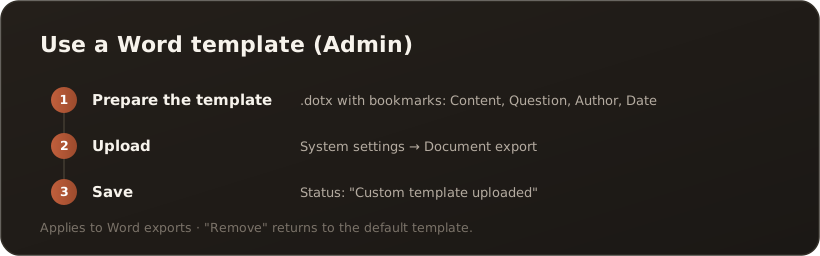
Section titled “Step by step”- Prepare the template — create a
.dotx(or.docx) file in your layout and place Word bookmarks with these names at the appropriate spots:Content— placeholder for the answer textQuestion— the underlying questionAuthor— the authorDate— the export date
- Upload — open Administration → System settings → Document export and upload the file under Word template (.dotx / .docx).
- Save — the status switches to “Custom template uploaded” (previously: “Default template in use”).
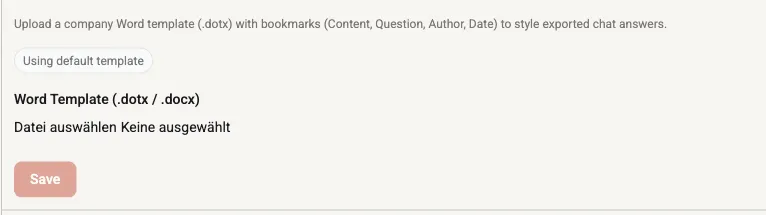
Administration → System settings → Document export: status and upload field before uploading a custom template.
Good to know
Section titled “Good to know”- Effect: The template formats the Word exports from the chat (Export an answer as Word or PDF). Without a custom template, a default template applies.
- Reset: Use Remove to return to the default template at any time.
- Bookmarks are the key: Only the four named bookmarks are filled — if one is missing, the corresponding spot stays empty.
What’s next
Section titled “What’s next”- Export an answer as Word or PDF
- Go deeper: Appearance / white-label (Configuration)