Create an agent and test it in a dry run
AdminAgents handle recurring tasks automatically — for example, triaging an inbox or preparing documents. They are managed in Administration (the Agents area in the navigation appears only for admins). The safest approach is to configure first, then test in a dry run, then go live.
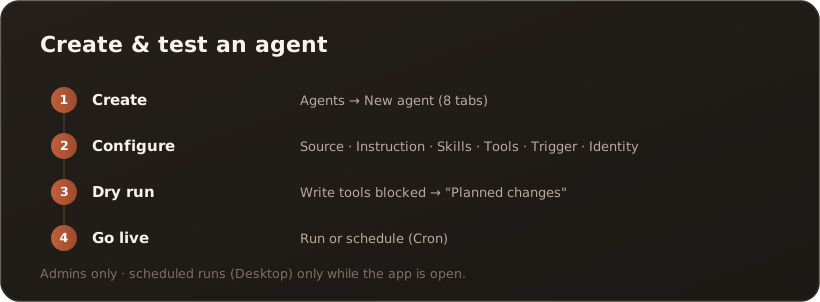
1. Create an agent
Section titled “1. Create an agent”Open Agents and choose New agent. The editor guides you through eight tabs:
- Overview — name, description, type, model and limits (max. iterations / runtime minutes) as well as Enabled.
- Scope — the source: Vault (knowledge area), Mail (mailbox), Working folder (desktop only) or none (prompt only) — with the matching detail configuration; plus the storage target, i.e. where the agent may write. → Chain agents
- Reasoning — the instruction (system prompt) the agent works by; optionally a result schema if the run should return a JSON result.
- Skills — additional skills from the catalog.
- Tools — the tools; each is marked as READ or WRITE.
- Triggers — the triggers: Schedule (cron schedule), Manual, Manual Dry-Run or Chat Message.
- Identity — which user the agent runs as (determines the rights/RBAC).
- Runs — this agent’s run history.
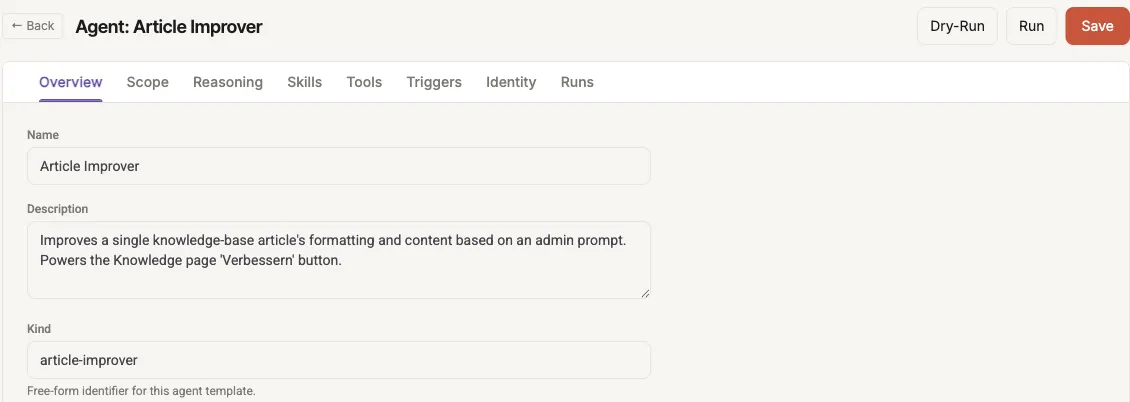
The agent editor: at the top the eight tabs, at the top right Dry-Run, Run and Save.
2. Test in a dry run
Section titled “2. Test in a dry run”Click Dry-Run. In a dry run, write tools are blocked — under “Planned changes” the agent shows only what it would write, without doing it. Process items one by one is suppressed too, because it triggers paid model calls. → Tools: Process many files or mails one by one This lets you check the behavior safely. You see the course of events in the run view (event timeline).
3. Go live
Section titled “3. Go live”Once you’re satisfied, start a real run with Run — or set up a schedule (cron) in the Triggers tab so the agent runs automatically.
Caution with write rights: Combine WRITE tools with automatic triggers only once the dry run has reliably planned the right thing.
Desktop note: Scheduled agents run in the desktop app only while the app is open. For continuous operation, the web mode is suitable.
What’s next
Section titled “What’s next”- Connect an MCP server — additional tools for agents
- Chain agents — storage target, only new files, one run per file or mail, JSON result
- Go deeper: Agent model (Concepts)