Import a document (Word/PDF) and publish it
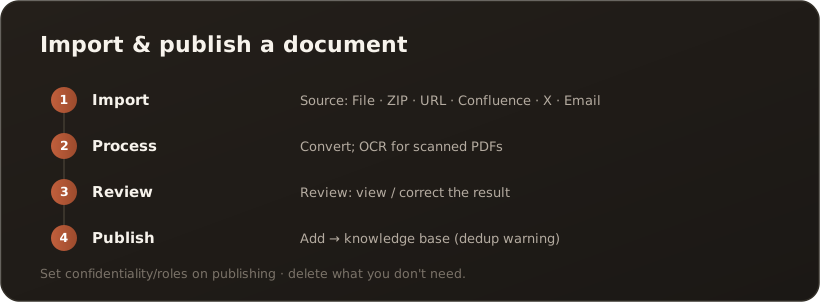
UserVia the Import page you bring content into the knowledge base from six sources. Every import that is to become an article goes through the same flow: Import → Process → Review → Publish. That way only reviewed, cleanly prepared content ends up in the knowledge base. Files that only need to be stored take a shorter path — see File documents as attachments only.
Step by step
Section titled “Step by step”- Open Import — on the Import page, choose Import and pick the source.
- Process — the import is added to the list; via Process it is converted (Office/PDF offline; scanned PDFs via OCR). The status moves from Imported to Converted.
- Review — use Review to look at the result and correct it if needed. The editing tab uses the globally configured Markdown editor (classic or visual). → The switchable Markdown editor
- Publish — via Add the document moves into the knowledge base. If it already exists, a dedup warning appears with the option to Overwrite.
The six sources
Section titled “The six sources”- File — single documents: Word, PDF, text/Markdown and more.
- ZIP — bulk import of whole document collections in one go.
- URL — read in a web page or an online article.
- Confluence — take pages directly from Confluence.
- X article — import an article from X (Twitter).
- Email — content from a connected mailbox.
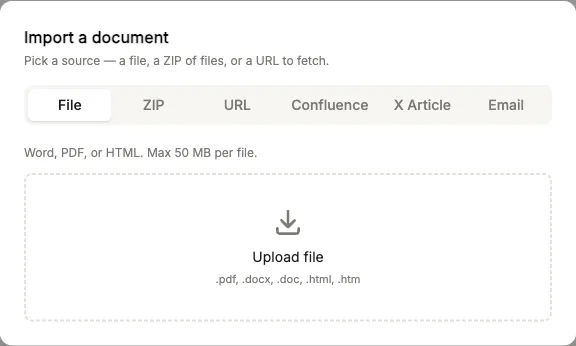
The import dialog with the six sources — here the “File” tab is active.
File documents as attachments only
Section titled “File documents as attachments only”For files that should simply be at hand — print versions, contracts, data sheets — there is a shorter path without conversion and without review:
- Upload — on the Import page, upload each file via File, or several at once as a ZIP.
- Process — for each import choose Process, set the Converter to File as attachment only (no analysis) and pick the Target folder. The import is then ready to promote right away.
- Promote — select the imports and click Promote selected (or Promote one at a time).
- Open the overview — the target folder now holds
Attachments.mdwith a link per file.
Only the file name is searchable, via the overview — not the content. What happens with the same file name, and why your own notes in the overview get lost: → Import: file as attachment only
Good to know
Section titled “Good to know”- Confidentiality on publishing: When you add a document, the confidentiality level and role/department mapping apply — only those allowed can see it later.
- OCR for scans: Image-only PDFs are made readable via OCR; the OCR service (Mistral) is configured by Administration.
- Discard: Imports you don’t need can be deleted before publishing.
- Permission: Importing and publishing require the corresponding permission.
- Keep the original: If Keep original documents is active for the target vault, the uploaded Word/Excel file stays next to the article and opens as a PDF view on click. → Original documents in the viewer
What’s next
Section titled “What’s next”- Your first document in the knowledge base
- Save a chat answer to the knowledge base
- Go deeper: Knowledge base & vaults (Concepts)