Step by step: configure a single workstation
AdminOn the first launch of the desktop app, a setup wizard guides you through the basic configuration. This guide describes every step for the single workstation (the free download edition). Prerequisite: CompanyWizard is installed and running (Installation & first launch).
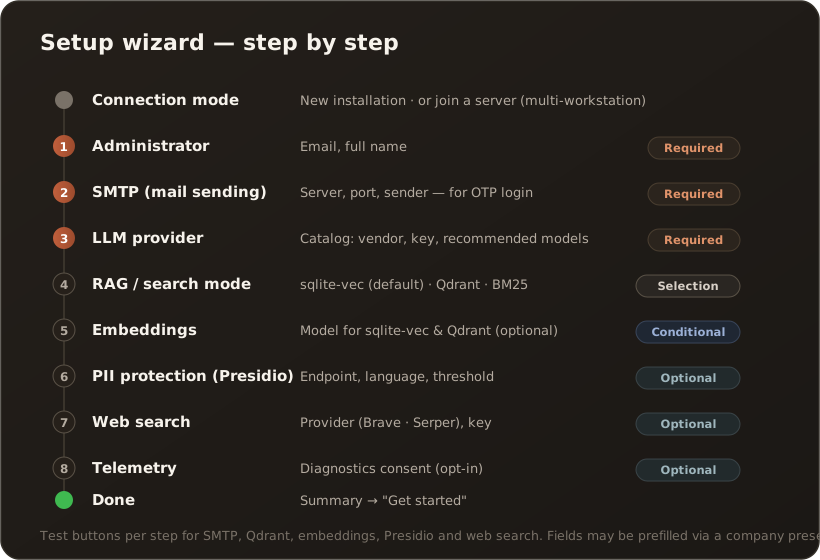
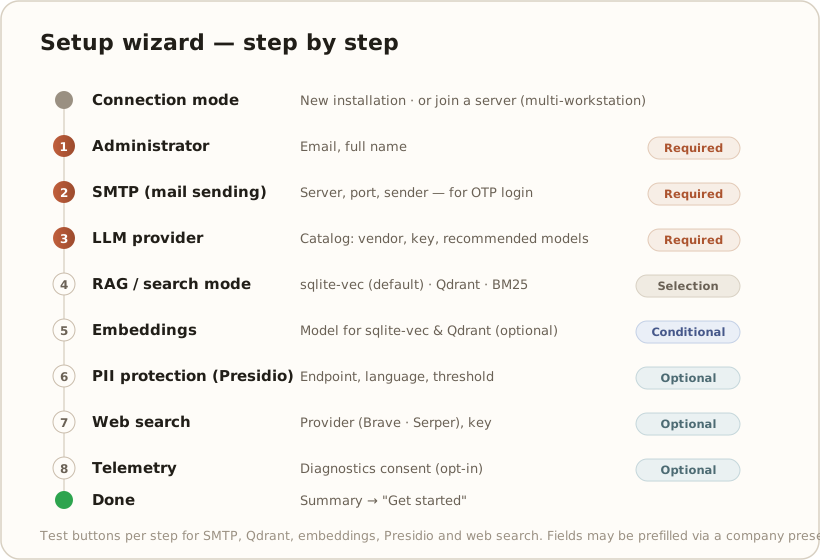
First: connection mode
Section titled “First: connection mode”Right at the start, the wizard asks whether you want to set up a new installation or connect to an existing server. For a single workstation, choose New installation. (Joining a server — where another instance takes over the configuration of an existing one — is described in the Installation scenarios reference, multi-user.)
1. Administrator (required)
Section titled “1. Administrator (required)”Creates the first user account you sign in with.
- Email — your address (also your login address).
- Full name
2. SMTP / mail delivery (required)
Section titled “2. SMTP / mail delivery (required)”CompanyWizard signs you in passwordless via a one-time passcode — for that, the app must be able to send emails.
- Server and Port (default 587), SSL (default on)
- Sender address
- Optional outbound authentication (username + password)
- Test connection checks delivery immediately.
Prefilled: the email you entered in the administrator step is already filled into sender address and username. Both are editable — if you send via a different mailbox, just enter it here. A corporate preset takes precedence and overrides the prefill.
Managed AI: when the provider step is skipped
Section titled “Managed AI: when the provider step is skipped”If your installation runs on a managed AI license, the wizard can take care of steps 3 and 5 for you: the license provides credentials and models automatically (provisioning).
Whether the provider/model step is skipped depends on the outcome of that provisioning:
- Provisioning succeeded — a usable chat model is available and the wizard skips the provider step. For chat, embeddings, document OCR and image generation you don’t need to enter a key of your own; only web search needs access of your own. → Managed AI: what it covers
- Provisioning failed — if the backend returns no credentials, the license step shows a warning and the model step stays visible. You then set up a provider manually as described in step 3.
The warning explicitly points out that this is often only temporary: your plan stays valid and provisioning is retried every time the application starts. So the manual provider is only needed if you want to keep working right away.
So the wizard only skips the step when a chat model is actually in place. This means a run no longer ends in a silent dead end without a usable model.
3. LLM provider (required)
Section titled “3. LLM provider (required)”The AI vendor whose models generate the answers. You use your own key (bring your own key). If managed AI provisioning succeeded, this step is skipped (see above).
If the model catalog is reachable, the catalog assistant (quick-add) drives this step: choose a vendor from catalog cards → enter the API key and test the connection → apply the models recommended per modality (chat, embedding, possibly image/OCR) — all under one account, each set as default. Details: AI models / providers.
Via Advanced you switch to the manual form; without a catalog connection (offline) it appears directly, with a hint:
- Type (dropdown, e.g. Anthropic, OpenAI, …)
- Display name, endpoint
- API key — where from? See Where do I get an LLM API key?
- Model
At least one model is mandatory. Quick-add no longer saves a provider without a model — “create the vendor now, add models later” is no longer possible. The reason: an account without models left an empty model dropdown in chat, so the wizard finished with an unusable configuration.
In corporate roll-outs with a preset, the wizard skips the catalog and uses the predefined vendor list.
4. Search mode / RAG (selection)
Section titled “4. Search mode / RAG (selection)”Here you decide how CompanyWizard searches your knowledge base. The wizard offers three modes as selection cards — sqlite-vec is preselected:
- sqlite-vec (default, recommended) — built-in vector search without external infrastructure. The right choice for a single workstation: semantic search locally, nothing extra to run.
- Qdrant — external vector database for large collections. Only this card shows connection fields: endpoint (
http://localhost:6334), API key, collection, dimension — with Test connection. - BM25 (keyword search) — pure keyword search, entirely without embeddings and without a vector store. A fallback; for German synonym/meaning questions the hit rate is noticeably lower.
5. Embeddings (with sqlite-vec & Qdrant — optional)
Section titled “5. Embeddings (with sqlite-vec & Qdrant — optional)”The model that “embeds” documents for vector search. This step appears for both vector modes (sqlite-vec and Qdrant) and can be skipped — without an embedding model, search falls back to BM25 at runtime. With BM25 the step is skipped automatically.
The fields are catalog-backed — you no longer type vendor and model names by hand:
- Provider — a dropdown of the known vendors (no longer free text).
- Embedding model — a dropdown from the model catalog, filtered to the selected vendor. So you only see models that actually exist there.
- Dimensions — prefilled automatically from the catalog when you pick a model. The value stays editable in case you deliberately want to deviate. If the catalog does not know a model’s vector size, the wizard warns explicitly and asks you to check the value against the vendor’s documentation — a wrong value makes the search index unusable.
- Endpoint and API key — as before, with Test connection.
- Registration links — if the catalog knows a key management page, a signup or a documentation page for the vendor, the wizard shows the matching links.
Without a catalog (offline or empty catalog) the step falls back to the previous behavior: you then enter vendor, model and dimensions as free text.
If you already applied an embedding model via the catalog assistant in the provider step, the fields here come sensibly prefilled.
6. PII protection / Presidio (optional)
Section titled “6. PII protection / Presidio (optional)”Enables automatic pseudonymization of personal data. Important: the wizard only records the connection — you run the Presidio instance itself separately via Docker (Set up Presidio).
- Endpoint (
http://localhost:5001), language (en), threshold (0.85) — with Test connection.
7. Web search (optional)
Section titled “7. Web search (optional)”Lets the AI search the web.
- Provider — a dropdown with Brave and Serper. Both can be set up right here.
- API key — the key field belongs to the selected vendor; if you switch vendors, enter the matching key.
- Registration links — per vendor, the wizard shows the way to the key.
- Max. results — with Test connection.
8. Telemetry (optional)
Section titled “8. Telemetry (optional)”Anonymous diagnostic data for product improvement — opt-in, off by default.
Finish
Section titled “Finish”A summary shows what was configured and what was skipped. With “Get started” you land in the app.
Tip: Only Administrator, SMTP and LLM provider are required. For search mode, sqlite-vec is preselected; embeddings, PII, web search and telemetry can be skipped and added later in the Administration. In company rollouts the fields may be prefilled via a preset.
License & activation (in brief)
Section titled “License & activation (in brief)”The download edition is the free single-workstation edition. Activation is passwordless in two steps (double opt-in): enter email + company and confirm the EULA/privacy policy → request code → enter code → activated. In the License area you see edition, status, used/maximum seats and the device. Details: see License & edition model.
Prefilled: the email from the administrator step is already in the field here — editable, in case you want to license to a different address. A corporate preset takes precedence.
With a managed AI license, this step additionally shows a warning if the automatic provisioning of the AI credentials failed. The model step then stays visible and you set up the provider manually (see Managed AI).
Multi-user?
Section titled “Multi-user?”The server join (desktop server mode or central API) and migrating data from an existing instance are described in the Installation scenarios reference.