Image generator
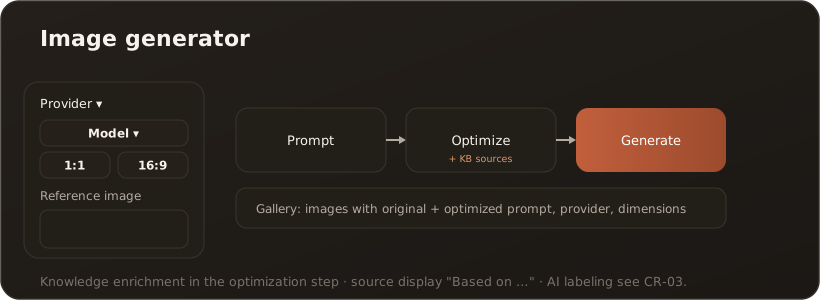
UserThe image generator (menu item Image Studio, route /image-generation) creates images from a text description. What makes it special: before generation, CompanyWizard can enrich the prompt with knowledge from your vaults, so that the imagery matches your content.
Interface
Section titled “Interface”You choose a provider and model (from the models stored in Administration), plus an aspect ratio and image size; depending on the model you can supply reference images. In the prompt field you write your description. Enhance Prompt produces an enriched version, which is shown and can be edited; Generate renders the image from it. Generate Directly skips the enhancement and renders your input unchanged. Refine adjusts the result afterwards. With Compare models several image models take on the same prompt side by side. A gallery stores your images along with their original and optimized prompts.
What the image generator can do
Section titled “What the image generator can do”- Two-stage flow — first prompt optimization, then image generation.
- Knowledge-grounded optimization (RAG) — in the optimization step CompanyWizard searches your knowledge base and shows the sources it used as “Based on: …”; role-based, limited to the content visible to you. → RAG & search
- Reference images (optional) — up to 4 images as a visual template, added by drag & drop or click: PNG, JPEG or WEBP, each at most 10 MB. How many the selected model accepts is model-dependent: up to 4 for the Gemini image models (such as Nano Banana) through a Google account of your own (Gemini API or Vertex AI), 1 for GPT Image, none for all other models, including the Managed AI image model. If the selected model cannot process reference images, the area says “This model does not support reference images.” How the images are to be read, as a style example or as a binding template, is set during Enhance Prompt by the Image Enhancement Prompt.
- Refine — an adjustment instruction produces a revised variant.
- Gallery — save, browse and delete images with metadata (provider, model, dimensions, date).
Compare models
Section titled “Compare models”With Compare models you create the same motif with 2 to 4 image models at once, also across providers, and pick the best image yourself. Comparing is a Pro/Site feature. → License & edition model
-
Turn on Compare models. The switch appears as soon as at least two image models are offered. The provider and model selection is replaced by a list of all image models with checkboxes.
-
Tick 2 to 4 models. Below the list you see how many images will be created: each image is billed separately and counts against your budget on its own.
-
Start as usual with Generate (after Enhance Prompt) or with Generate Directly. All models receive the same prompt; it is enhanced only once.
-
The images appear as cards side by side, each as soon as its image is done, with model name, provider and duration. If a model fails, for example on the budget, on a timeout or at the provider, only its card shows the error; the others keep running.
-
Once the whole run is done, choose per card:
- Keep saves the image to the gallery; the card then shows “Saved to the gallery”.
- Continue with this switches to the single view with this model and this image. Refine, Download and Keep then work as after a single generation.
While any image is still being created, both buttons are locked (“Available once all images are done.”).
The same input for every model. To keep the comparison fair, CompanyWizard only offers aspect ratios and image sizes that all selected models support. If they share none, a note appears and generating stays locked; choose other models then. Of your reference images, at most as many go out as the model with the smallest limit accepts. If one of the selected models accepts none, the comparison runs without reference images.
- During the run all inputs are locked, including using a gallery image as a reference.
- PII protection: It applies to every card as it does to a single generation. If the prompt contains placeholders such as
[PERSON_1], the card points this out. - Reference images after Keep: As in the single view, Keep removes your uploaded reference images.
- Without a Pro or Site licence, generating shows the message “Comparing image models requires a Pro or Site license.” and comparison mode switches off.
- Only what you keep is stored. The comparison itself leaves no history and no statistics.
Labeling & transparency
Section titled “Labeling & transparency”The image generator transparently shows the original and optimized prompt. The labeling requirement for AI images under Art. 50(2) of the EU AI Act is covered in the compliance article → Art. 50(2) AI image labeling. When using generated images outside the app, the labeling must be observed.
Content Credentials (C2PA)
Section titled “Content Credentials (C2PA)”Content Credentials are a machine-readable, cryptographically signed provenance record based on the open C2PA standard (Coalition for Content Provenance and Authenticity). Some image providers embed this record directly into the generated image file — it states who created the image, with which tool, and when.
Where do I find it? Open an image in the gallery detail view. The “Content Credentials” panel appears directly below the purple “AI-generated” badge.
When present in the image, these fields are shown:
| Field | Meaning |
|---|---|
| Verification | Trust status of the signature (see below). |
| AI flag | Does the manifest declare AI generation? (Yes/No) |
| Issuer | Who issued the signature (e.g. “OpenAI OpCo, LLC”, “Google LLC”). |
| Generator | The creating tool/service (e.g. “OpenAI Media Service API”). |
| Timestamp | When the signature was created. |
The three verification statuses
Section titled “The three verification statuses”- Verified — valid signature, and the issuer is on the official C2PA trust list.
- Issuer not in trust list — the signature is valid, but the issuer’s certificate is not (yet) on the trust list. Not an error: the image is genuinely signed, the issuer simply isn’t listed yet.
- Invalid — the signature could not be confirmed, e.g. because the file was altered after signing.
Empty state
Section titled “Empty state”If an image carries no C2PA manifest — not every provider embeds one — or the check was not possible, the panel shows “No Content Credentials found in this image.” This is normal and not a defect.
Relationship to the visible AI label
Section titled “Relationship to the visible AI label”The visible “AI-generated” badge (Art. 50(4)) and the Content Credentials panel (machine-readable provenance, Art. 50(2)) are two different things. The panel does not replace the visible label. → Art. 50(2) AI image labeling
Robustness: Provenance is read from the image once, at save time; the display path only reads that stored data. If provenance is missing, the image stays fully usable.
Image Enhancement Prompt (company-wide)
Section titled “Image Enhancement Prompt (company-wide)”How your input is rewritten in the Enhance Prompt step is governed not only by knowledge enrichment, but also by a dedicated Image Enhancement Prompt. It instructs the text LLM by which rules a user prompt becomes an image prompt — and therefore acts for all users as the lever for a consistent image style. Administrators maintain it in the Administration → System prompt tab, next to the global system prompt. → Admin tab: System prompt
Image quality and frontier models
Section titled “Image quality and frontier models”Data protection with external image providers
Section titled “Data protection with external image providers”What goes where in each step:
| Step | Recipient | What is sent |
|---|---|---|
| Enhance Prompt | Text model: Managed AI while Only Managed-AI models → Images is on. Otherwise a model with the Image prompt optimization modality, if one exists (the one marked as default, otherwise the first), and only without one your default chat model | Your input and excerpts from your vaults pseudonymized; reference images without a PII check |
| Generate | Selected image model | The text in the prompt field pseudonymized, plus the reference images |
| Generate Directly | Selected image model | Your input pseudonymized, plus the reference images |
| Refine | Selected image model | The change instruction pseudonymized, plus the previous image |
“Pseudonymized” applies while PII protection is active. If detection cannot check a vault excerpt, CompanyWizard enhances without vault context instead of sending it unchecked.
Placeholders instead of names. The enhanced prompt shows detected names as placeholders such as [PERSON_1]; a note below it explains this. The image model receives exactly this text — unlike in chat, CompanyWizard does not put the real values back here. If a real name should appear in the image, for example as a caption, switch the PII shield in the header off first, provided your administrator allows it. The prompt and vault excerpts then go out with real values. → Switching the protection off on purpose
Limits & notes
Section titled “Limits & notes”- Managed AI covers image generation — rendering runs through the package, and so does Enhance Prompt while Only Managed-AI models → Images is on. With the switch off, the order from the table above applies. For demanding images see Image quality and frontier models above. → Managed AI: what it covers
- Knowledge enrichment takes effect in the optimization step, not in pure rendering.
- Available providers/models depend on Administration → Models — offered are models with the image generation modality under the vendor accounts.
- Available in web and desktop.