Save a chat answer to the knowledge base
UserWhen an answer is especially useful, you may want to keep it available for good — as a document in the knowledge base that the AI uses as a source from then on. Three paths lead there — the fastest is straight from the answer toolbar.
Path A: directly with “Save to KB” (recommended)
Section titled “Path A: directly with “Save to KB” (recommended)”- Save to KB — hover over the answer and click Save to KB in the answer toolbar.
- Pick a vault & title — in the picker, choose the writable knowledge area (vault) and a title.
- Done — the whole answer is stored as a Markdown note in the chosen vault (respecting your roles/confidentiality) and indexed automatically.
If the answer contains a diagram or chart, the new note renders it identically when opened; the source text is preserved for search. → Visual answers: diagrams & charts
Path B: copy and create a new file (for full control over the content)
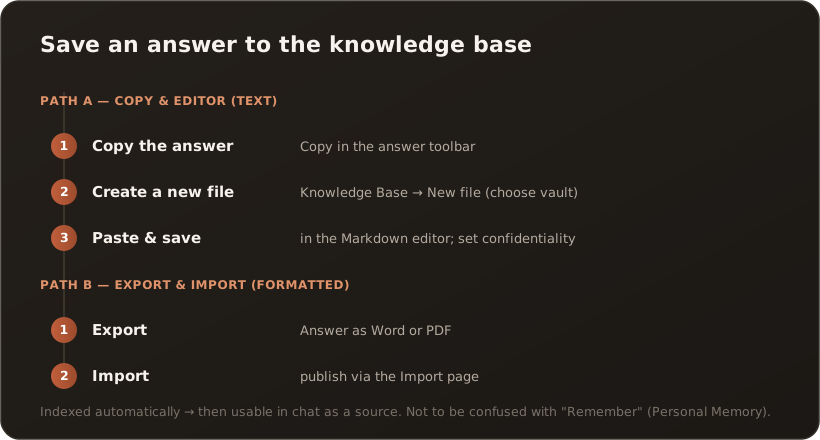
Section titled “Path B: copy and create a new file (for full control over the content)”- Copy the answer — hover over the answer and click Copy in the answer toolbar.
- Open the Knowledge Base — switch to the Knowledge Base via the sidebar.
- Create a new file — choose New file, enter the path/name and create it in the right knowledge area (vault).
- Paste & save — paste the copied text in the Markdown editor, add a title and confidentiality level if needed, and save.
The new file is indexed automatically and is then available in the chat as a knowledge source with a source reference.
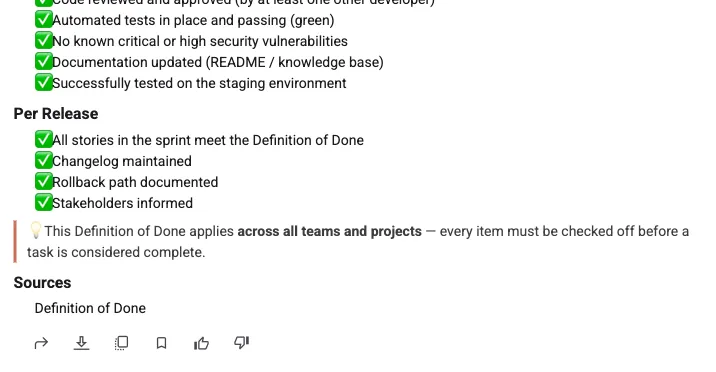
The answer toolbar: use Save to KB to store the answer directly (Path A), use Copy to take the text (Path B), use Export to create a file (Path C).
Path C: export and import (for formatted documents)
Section titled “Path C: export and import (for formatted documents)”- Export — click Export in the answer toolbar and choose Word or PDF.
- Import — read the file in via the Import page, review it and add it to the knowledge base (publish it).
Good to know
Section titled “Good to know”- Roles & confidentiality — assign the right confidentiality level and department/role mapping when creating it; only those allowed can see it.
- Personal vs. shared — save the answer in your personal area if it is meant for you only, otherwise in the appropriate team vault.
- Not to be confused with “Remember”: The toolbar action Remember writes a short fact into the AI’s Personal Memory — that is something different from a document in the knowledge base.
What’s next
Section titled “What’s next”- Analyse a file in chat
- Your first document in the knowledge base
- Go deeper: Knowledge base & vaults (Concepts)