Import
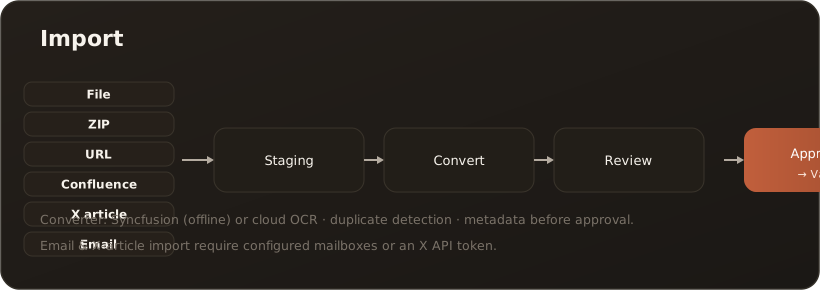
AllThe Import page (menu item Import, route /import) brings content from external sources into your knowledge base in a controlled way. Instead of placing files directly, they pass through a four-stage path — so you can check metadata and content before anything lands in the vault.
Six sources
Section titled “Six sources”| Source | Content |
|---|---|
| File | Word, PDF, HTML (max. 50 MB per file) |
| ZIP | bulk upload; supported file types |
| URL | public HTTPS page, imported cleaned up |
| Confluence | Confluence pages via the stored credentials |
| X article | X.com long-form articles (X API token required) |
| mailbox + time range + optional sender filter, multi-select |
The flow: staging → convert → review → release
Section titled “The flow: staging → convert → review → release”- Staging — upload/select the source; the entry waits for processing.
- Convert — in the options dialog you choose the converter (Syncfusion offline or a cloud OCR model) as well as access roles, department, confidentiality and target vault. If the file should only be stored and not analysed, choose File as attachment only (no analysis) instead — the review step then does not apply (see below).
- Review — in the modal you check and edit metadata (frontmatter), Markdown and Preview and choose the target folder.
- Release — Adopt (new) or Overwrite (on an existing match) moves the content into the vault and updates the indexes.
File as attachment only
Section titled “File as attachment only”Some files should simply be at hand, not analysed — a print version, a signed contract, a data sheet. For those, choose File as attachment only (no analysis) as the Converter in the Processing options dialog, and the Target folder below it.
- No analysis: The file is copied unchanged to
{target folder}/attachments/{original name}— not converted, not split into sections. Its content is not searchable. - The
Attachments.mdoverview: An overview with a table (File, Size, Date) and a link per attachment is created or updated in the target folder. Only this overview goes into the search index — so chat search finds the file name, not the content. If the chat should answer from the document, import it with Syncfusion or OCR. - No review: Since nothing was converted, there is nothing to review. After processing, the import is ready to Promote right away — which is why you choose the target folder in the processing dialog already.
- Opening: Clicking a link in the overview opens PDF, Word (
.docx) and Excel (.xlsx) files in the viewer. Other files are reachable in the file tree via the All Files view — theattachments/folder is hidden in the normal view; anything without a preview can be downloaded there via Download in the context menu.
The overview is a projection, not a document
Section titled “The overview is a projection, not a document”Every attachment import regenerates the body of Attachments.md from the contents of the attachments/ folder. Your own notes in the overview are lost in the process — write them in a separate article that links to the attachments. The overview’s frontmatter is kept, so an adjusted classification and access roles survive.
A file placed directly in attachments/ via upload in the knowledge base appears in the overview automatically on the next attachment import into that folder.
Same file name means replace
Section titled “Same file name means replace”A file is recognised by its name alone: an attachment with the same name replaces the existing file. That is why nothing is ever overwritten without asking:
- Promote one import: A prompt asks “A knowledge base file already exists for ’…’. Overwrite it?”. OK replaces it — the right way when, say, a print version was updated.
- Promote selected: An attachment with the same name is skipped and listed after the run with a note that it already exists; nothing is overwritten. To replace it, promote that import on its own.
Limits of the mode
Section titled “Limits of the mode”- Only on the Import page — knowledge-base sync does not offer it.
- For HTML files, URL, Confluence, X articles and email it is not available in the processing dialog; the converter is fixed there.
- If the target folder already holds a file
Attachments.mdof your own that is not an attachment overview, promoting is refused. Rename that file or choose a different target folder.
What import can do
Section titled “What import can do”- Six source types including Confluence, X articles and mailbox import with a filter.
- Duplicate detection — warns if the same file has already been imported.
- Converter choice — offline (Syncfusion) or cloud OCR for difficult PDFs/scans (via Managed AI or an account of your own, e.g. Mistral).
- Metadata enrichment — roles, department, confidentiality and target folder already before release.
- File as attachment only — store files unchanged, without conversion; an overview in the folder lists them.
Limits & notes
Section titled “Limits & notes”- Licence (Pro/Site): SharePoint and Confluence import are available in Pro and Site (not Free); generic file import (Word/PDF/HTML), ZIP and URL remain available in all editions. → License & edition model
- Email import requires mailboxes configured under Administration → Mailboxes.
- X article import needs an X API token stored under Administration → Models.
- Cloud OCR uses a model with the OCR modality: with Managed AI the package’s OCR model, otherwise one under a provider account of your own, e.g. at Mistral (Administration → Models). The import dialog marks which model runs through Managed AI. → Managed AI: what it covers