The interface at a glance (navigation)
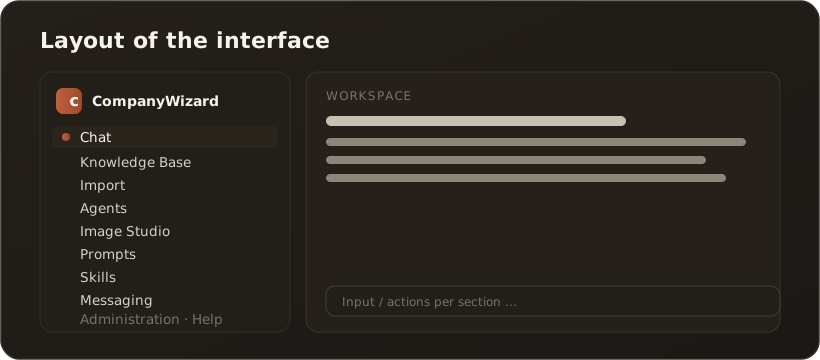
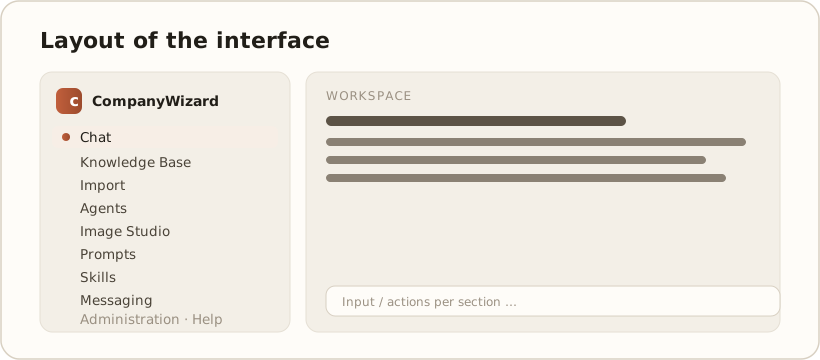
UserCompanyWizard is split into two areas: the navigation bar with all sections on the left, and the workspace on the right, which changes depending on your selection.
The sections in the navigation
Section titled “The sections in the navigation”- Chat — the central AI workspace.
- Knowledge Base — search, view and maintain your documents.
- Import — bring in documents from Word, PDF, Confluence, email and more.
- Agents — automate recurring tasks.
- Image Studio — generate images with AI.
- Prompts — reusable templates.
- Skills — extend the AI with specialist knowledge (skills).
- Messaging — share results with your team.
- Administration (admins only) — users, models, settings.
- License — edition, status, used/maximum seats and your device; this is where you activate your license or upgrade.
- Help — this help system, available anytime.
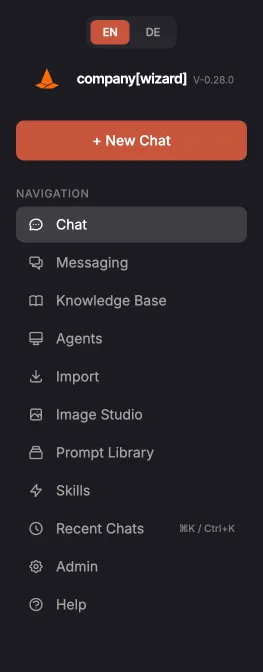
The real navigation bar after sign-in.
Note: which sections you see depends on your permissions and the configuration — Administration only appears for the admin role, Messaging only when the multi-user/server feature is enabled, and the License area is mainly relevant in the desktop app.
What’s next
Section titled “What’s next”That completes onboarding. Go deeper in the How-tos (concrete tasks) and the Concepts (how things work).