Knowledge base
AllThe Knowledge Base (menu item Knowledge Base, route /knowledge) is your searchable company knowledge. It manages one or more vaults (knowledge areas), shows their content as Markdown notes and provides the basis for the knowledge-grounded answers in the chat (RAG).
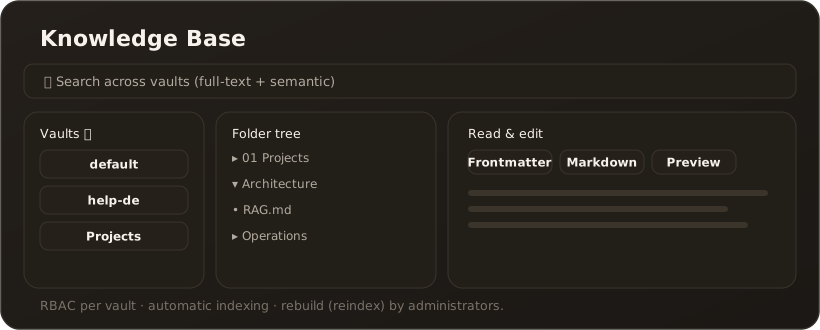
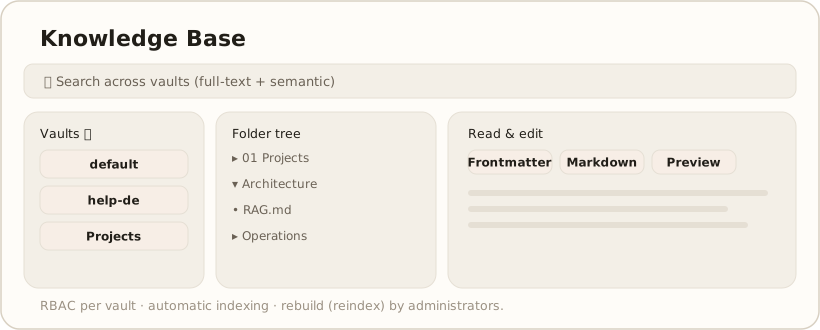
Interface
Section titled “Interface”On the left you choose the vault and navigate the folder tree; a click opens the note in the right-hand area with the Frontmatter, Markdown and Preview views. Through search you find content across vaults. Authorized users additionally see actions to create, upload, edit, archive and delete — each on the action row above the tree and in the right-click context menu.
If a note is missing from the tree because it was created or changed outside the interface — for example via MCP (note_write from Claude Code), via sync or directly in the file system — choose Refresh in the folder’s right-click context menu. The entry appears on folders only, in every vault, even while you are editing a note, and needs no write permission. It reloads only this folder and its subfolders and discards the cache while doing so; for a server vault on a paired desktop, the server re-reads the folder. Expanded folders stay expanded. If the open note lies in this folder, it is reloaded too — unless you are editing it, so unsaved changes are kept. The whole vault, by contrast, is reloaded by the Reload vault contents button next to the vault selector. The menu entry applies from the CompanyWizard update after version 0.80.
Overview documents (start / landing pages)
Section titled “Overview documents (start / landing pages)”Both the vault level and folder level can have a landing page that appears automatically in the right-hand preview pane:
- When you open a vault, a convention-named overview document at the vault level is shown — instead of a blank pane.
- When you select a folder in the tree, its overview document opens on the right. The folder stays selected and thus remains the upload target and the target of the context menu.
Allowed filenames — in this order of preference, filename matched case-insensitively:
Übersicht.mdindex.md/Index.mdREADME.md
Only the direct child of the selected level counts: a nested subfolder/Übersicht.md does not open for the parent folder. If a level has no overview document, the right-hand preview stays unchanged.
An English Overview.md or similar is currently not recognised — create landing pages under one of the names above.
What the Knowledge Base can do
Section titled “What the Knowledge Base can do”- Multiple vaults — separate knowledge areas with their own indexing; you only see the vaults you are authorized for. → Knowledge base & vaults
- Search — search combines full-text and semantic search; the backend automatically picks the active method (sqlite-vec, Qdrant or BM25). → RAG & search
- Read & edit — view notes including frontmatter (YAML) and edit them inline or in full-screen; embedded images/PDFs are rendered. The Markdown editor is switchable — classic (source) or visual (WYSIWYG), globally via an admin setting. → The switchable Markdown editor
- Add content — upload single files (
.md,.txt,.pdf, Office, images) or a ZIP, create a new file/folder. Larger source imports go through the Import page. → Import a document - Adopt a chat response — responses can be moved into the knowledge base. → Move a response into the knowledge base
- Archive — move outdated documents or whole folders to the archive with one click; the original location is mirrored and the step is reversible. → Archive a document or folder
Original documents (Word/Excel) in the viewer
Section titled “Original documents (Word/Excel) in the viewer”If the Keep original documents switch is set for a vault under Administration → Vaults, every import keeps the uploaded original in an attachments/ folder next to the article and adds the line > Original document: … below the heading (> Originaldokument: … if the importing user works in German). Clicking that line — or the .docx/.xlsx file in the folder tree — opens the original directly in the right-hand pane as a read-only PDF view, in the same viewer used for PDFs. Nothing is downloaded.
- Both modes: On the web and in Desktop client/server mode the server converts the document. Desktop standalone converts locally and needs no API server for it; vaults mounted via the API are fetched from the server like any other read and converted locally.
- Access: The same vault permissions apply as for all attachments — whoever can read the vault sees the original.
- Error case: If the file is corrupt, missing, or you have no access, a message naming the file appears instead of the view:
Preview for ‘report.docx’ could not be created — the file may be corrupt, missing, or you may not have access to it.
Limits
- View only, no editing — make changes in Word/Excel and re-import the document.
- Only
.docxand.xlsx. For.pptxand the legacy.doc/.xlsformats the notice “Preview is not available for this file type” appears — use Download in the file’s context menu to open it in another application. - Originals over 50 MB are not converted in any mode; a dedicated message names the file and the limit, again pointing to Download.
- The view is a PDF rendition: very wide Excel sheets may wrap across several pages.
Permissions & indexing
Section titled “Permissions & indexing”Access is role-based per vault (RBAC): reading, writing and visibility follow your roles. → RBAC & confidentiality levels. Indexing runs automatically (at startup + on changes); a full rebuild is available to administrators as a button. Vaults themselves are created and granted permissions under Administration → Vaults. → Create a vault and grant permissions
Limits & notes
Section titled “Limits & notes”- Reindexing is reserved for administrators.
- Content is Markdown-based; source formats are converted on import — except with File as attachment only, where the file stays unchanged and only its name can be found, via the
Attachments.mdoverview. → Import