Create a vault and assign access rights
AdminA vault is a self-contained knowledge area — by department, team or project, for example. Via roles and departments you control who sees it. Admins manage vaults under Administration → Knowledge areas (vaults).
Step by step
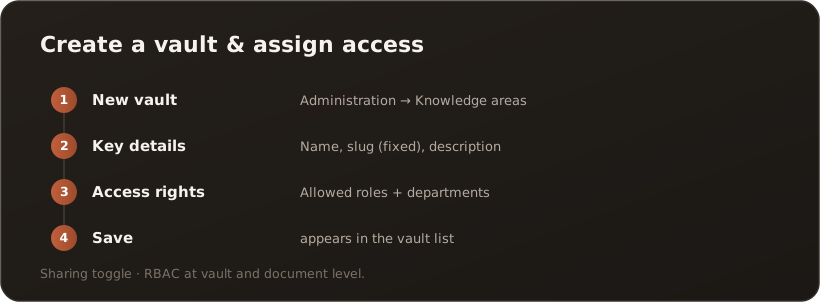
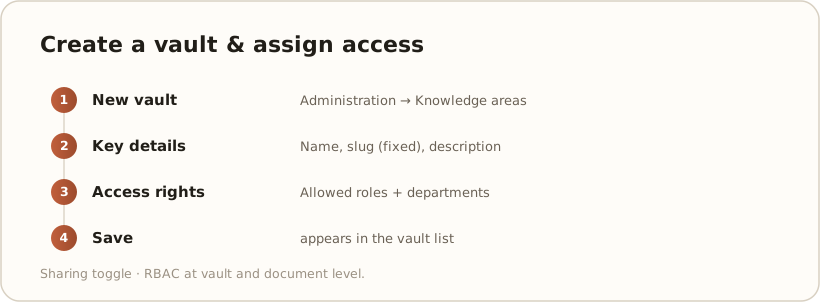
Section titled “Step by step”- New vault — in the vault list, choose New vault.
- Key details — name, slug (technical identifier — no longer changeable after creation) and optionally a description.
- Access rights — set Allowed roles and Allowed departments. Only those with a matching role/department see the vault and its content.
- Save — the vault appears in the list.
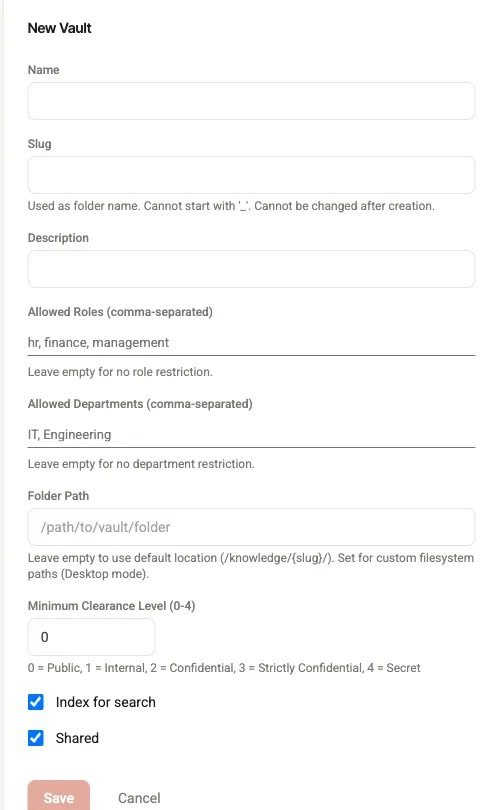
The vault form: the slug is fixed after creation; via Allowed roles/departments you control access.
Good to know
Section titled “Good to know”- Shareable: Via the Shareable toggle you allow whether the vault may be shared (note the sharing-rule hint at the top of the list).
- Vault types: Badges mark System, Read-only, Personal, Remote and Hidden vaults. Personal vaults belong to exactly one person.
- Content inherits the rules: Documents additionally carry their own confidentiality level — RBAC applies at both the vault and the document level.
- Mount remote / delete: External vaults can be mounted; vaults you no longer need can be deleted.
Example: share a vault with department X
Section titled “Example: share a vault with department X”Goal: a knowledge area that only the Sales department sees — without content accidentally surfacing elsewhere.
- Create the vault as above; for name use e.g. “Sales”, for allowed department
Salesand for allowed roles the sales roles. - Set the defaults: assign suitable default roles / confidentiality / clearance so newly uploaded files are automatically pre-filled correctly — this prevents accidentally “open” documents.
- Shareable only deliberately: enable the Shareable toggle only if the vault really should be available beyond your own instance (pairing/server mode). Otherwise leave it off.
- Check the frontmatter: make sure imported files carry
access-roles/classification/clearance-level. Files without frontmatter are treated restrictively — so in shared vaults they stay hidden rather than too open. - Counter-check: sign in with a test account without the sales role and confirm that neither the vault nor its content appears in browser and search.
Background on the three-tier model: RBAC & confidentiality levels.
What’s next
Section titled “What’s next”- Import a document and publish it
- Go deeper: Knowledge base & vaults and RBAC & confidentiality levels (Concepts)