Enable skills and use them in chat
UserSkills are specialized instruction sets that steer the AI’s answering behavior in a specific direction — toward a legal review, a brand-compliant marketing tone or a code review, for example. When a skill is active, it shapes how the AI interprets your messages and phrases its answers.
Step by step
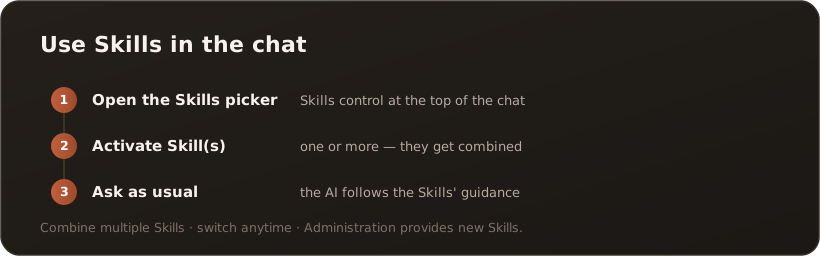
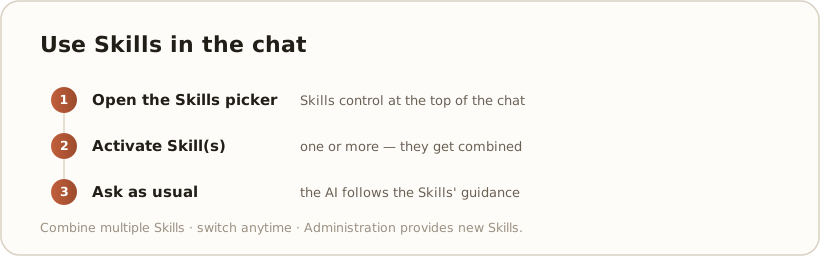
Section titled “Step by step”- Unlock skills (once) — new users start with no skill selected. Open the Skills menu item, go to the “My Skills” tab and tick the skills you want to use in chat. The selection is saved immediately. Without this step, the skills list in chat stays empty.
- Open the skills in chat — on the right in the “Skills & Prompts” area (tab Skills) or, on narrower screens, via the “Skills” dropdown in the chat. It lists the skills you picked under “My Skills”.
- Enable skill(s) — tick the skills you want. You can enable several at once — the AI combines their instructions.
- Ask as usual — the AI handles your next message in the direction of the active skills.
With no active skill, the AI answers with its general capabilities.
Discover skills
Section titled “Discover skills”Via the sidebar you reach the Skills page. Each skill shows a title and a description; a click opens the full description and any reference material — documents that the skill passes to the AI as additional context (for example, guidelines for a compliance skill).
Good to know
Section titled “Good to know”- Combinable — several active skills work together.
- Switch anytime — skills can be turned on and off for your work.
- Managed by admins — new skills are provided by Administration as a ZIP package; if you need a new skill, contact your Administration.
What’s next
Section titled “What’s next”- Switch the model per task
- Analyse a file in chat
- For admins: Upload new skills via ZIP (How-tos)