What access the application has in SharePoint
AllAnyone asked to approve the SharePoint connection will rightly ask: how much is the application allowed to see? This page answers that in a form you can hand to your data protection officer.
The short answer
Section titled “The short answer”The technical term for this is delegated access. Its counterpart — application permissions, where a service accesses everything independently of any user — appears nowhere in the product.
The flow, illustrated
Section titled “The flow, illustrated”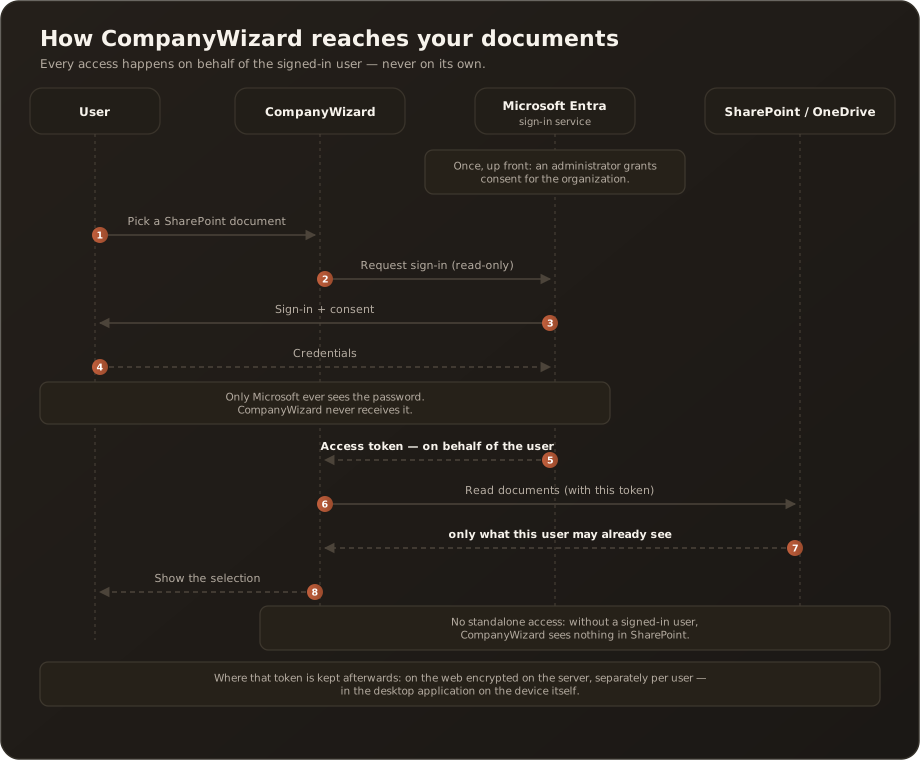
The same flow in words:
Once, up front, an administrator grants consent for the organization. After that, every access works like this:
A user wants to pick a SharePoint document in CompanyWizard. CompanyWizard therefore requests a sign-in from Microsoft Entra — explicitly with read permissions only. Entra shows the user the sign-in and consent page; they enter their credentials directly with Microsoft. Only Microsoft ever sees the password — CompanyWizard never receives it at any point.
Microsoft then hands CompanyWizard an access token issued on behalf of that user. With that token — and only with it — CompanyWizard reads documents from SharePoint. SharePoint returns nothing but what that user may already see, and the selection is shown to them.
There is no standalone access: without a signed-in user, CompanyWizard sees nothing in SharePoint.
The flow during setup
Section titled “The flow during setup”The flow above shows day-to-day operation — it is identical in both sign-in modes. Before it comes the one-off setup, and that is where the only difference between the modes lies.
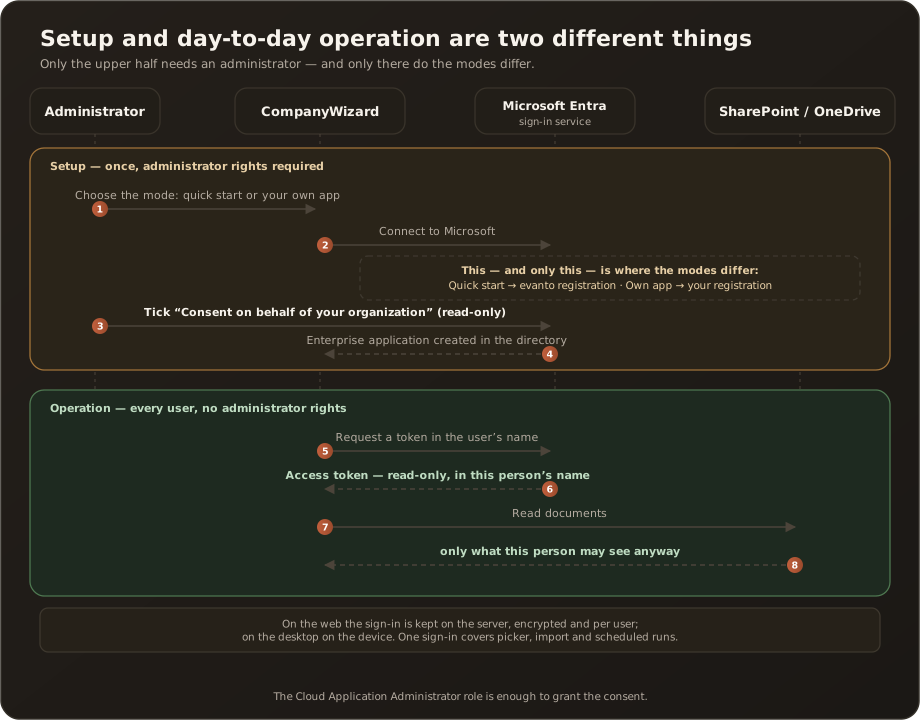
Setup — once, with administrator rights. An administrator picks the mode and grants the organization-wide consent — usually on the first “Connect to Microsoft”, by ticking “Consent on behalf of your organization” in Microsoft’s sign-in dialog. With your own app this can alternatively be done in the Entra portal, and the provisioning assistant grants the consent itself. A separate approval page only remains as a fallback, if the consent is missing when connecting. What they consent to depends on the mode:
| Mode | The consent applies to the app registration … | Visible afterwards under |
|---|---|---|
| Quick start | of evanto (multi-tenant) | Entra → Enterprise applications → “CompanyWizard” |
| Your own app | of your own organization | Entra → App registrations and → Enterprise applications |
In both cases an enterprise application is created in your directory — that is the entry the consent hangs on, and where you can revoke it at any time.
Operation — every user, no administrator rights. From here the flow is identical to the one described above: each person signs in with their own account and sees nothing but what they may see anyway.
Where the sign-in is kept
Section titled “Where the sign-in is kept”The flow above is the same in both modes of operation — what differs is where the sign-in is kept afterwards.
| Web (browser) | Desktop | |
|---|---|---|
| Kept | on the server, encrypted and separately per user | on the device, in the operating system’s credential store |
| Reach | the user account — valid on every device and in every browser | the device — machine-wide, regardless of which CompanyWizard account is signed in |
| Stored in the browser | nothing; access tokens are fetched only for the moment of the request | — |
On the web, one sign-in is therefore enough: folder picker, interactive import, connection test and the scheduled syncs all use the same connection. The SharePoint permissions are granted in the same consent as the Graph permissions — one pass, not two.
Scheduled syncs run with the connection of the owner of the configuration in question. Another administrator connecting does not help that run. → Set up knowledge sync
Signing in again becomes necessary when the consent was revoked in Entra, when password or policy conditions changed, when the app registration was switched, when the SharePoint address points at a different tenant — or when the connection still dates from before the change and does not carry the SharePoint permission. You can tell from the status “Sign-in required” on the affected sync and from the line “Connected as …, but without SharePoint permission” on the connection card.
Disconnecting removes the connection completely — it is a single sign-in, so disconnecting applies to calendar and SharePoint at once. Your own scheduled syncs pause on their next run until you connect again.
The permissions being requested
Section titled “The permissions being requested”All permissions are delegated and read-only. Not a single write permission is requested.
| Permission | What it means |
|---|---|
User.Read | Read the signed-in user’s own profile (name, email) — so the application knows who is signed in. |
Files.Read.All | Read files the signed-in user has access to. Not: all files in the organization. |
Sites.Read.All | Read SharePoint sites the signed-in user may already see. Not: all sites. |
offline_access | Renew the sign-in across sessions, so the user does not have to sign in again on every access. |
AllSites.Read | The SharePoint counterpart to Sites.Read.All for the classic SharePoint interface. |
MyFiles.Read | Read the signed-in user’s personal OneDrive. |
What admin consent allows
Section titled “What admin consent allows”Organization-wide consent is the step most often misunderstood in data protection reviews.
It merely replaces individual consent: without it, every user would have to consent themselves on first access. With it, that dialog is gone. What a user may see is still decided solely by SharePoint, based on their permissions.
What the consent does not do:
- It gives the application no permissions of its own on documents.
- It allows no access without a signed-in user.
- It lifts no SharePoint permission and extends none.
- It permits no writing, changing or deleting — read access only is requested.
The consent can be revoked at any time: an administrator removes the enterprise application in Microsoft Entra, after which no token can be obtained.
The only place with write access: the provisioning assistant
Section titled “The only place with write access: the provisioning assistant”For completeness — and because this is the page handed to data protection: there is one function that is briefly allowed to do more than read.
Anyone who does not want to create their own app registration by hand in the Entra portal can have CompanyWizard create it (provisioning assistant, desktop only, mode “Your own app” only). To do so, the application requests two write permissions on the directory when the assistant starts — Application.ReadWrite.All and DelegatedPermissionGrant.ReadWrite.All.
What applies here:
- They are requested only at the moment an administrator starts the assistant — never in advance and never during day-to-day operation.
- They concern the directory only (app registrations and consents), not SharePoint, OneDrive or documents.
- They are handed back after the run, and the application then reads back whether they have really disappeared. If that fails, it says so visibly with the path to check, instead of reporting success.
- They are optional: anyone who does not use the assistant never sees these permissions. The manual path through the Entra portal remains right beside it, unchanged.
Every detail — the flow, the visibility conditions, what to do if handing them back fails — is on Set up the Microsoft/SharePoint connection.
When Sites.Read.All is withheld
Section titled “When Sites.Read.All is withheld”A tenant administrator can decline individual permissions during consent. If they withhold Sites.Read.All, nothing breaks:
- The connection keeps working.
- The file picker is limited to the user’s personal OneDrive.
- Team sites do not appear in the picker.
- Users see a note, not an error.
This is a deliberately built fallback, not a fault. The test button in system settings reports this situation in plain language → Error messages.
What happens to the documents afterwards
Section titled “What happens to the documents afterwards”Access does not end at reading — the documents then go through the same safeguards as any other import:
- They go through review and classification like every other import → Import and publish a document
- In the knowledge base, roles and confidentiality levels apply → RBAC & confidentiality levels
- Before anything is sent to an AI model, PII protection applies → What happens to your message
Important for the assessment: SharePoint permissions do not automatically carry over into the knowledge base. Once a document has been published there, CompanyWizard’s roles and confidentiality levels decide who sees it. Anyone approving a SharePoint source should design that transition deliberately.