Set up the Microsoft/SharePoint connection
AdminBefore CompanyWizard can read documents from SharePoint and OneDrive, the installation has to identify itself to Microsoft once. Everything you need is under Admin → System settings → “Microsoft Graph / SharePoint”.
You make exactly one decision there — the question reads “How should CompanyWizard sign in to Microsoft?” — and from then on the page only shows what your path requires.
SharePoint import is a Pro/Site feature (not in Free) → License & edition model.
Which path applies to me?
Section titled “Which path applies to me?”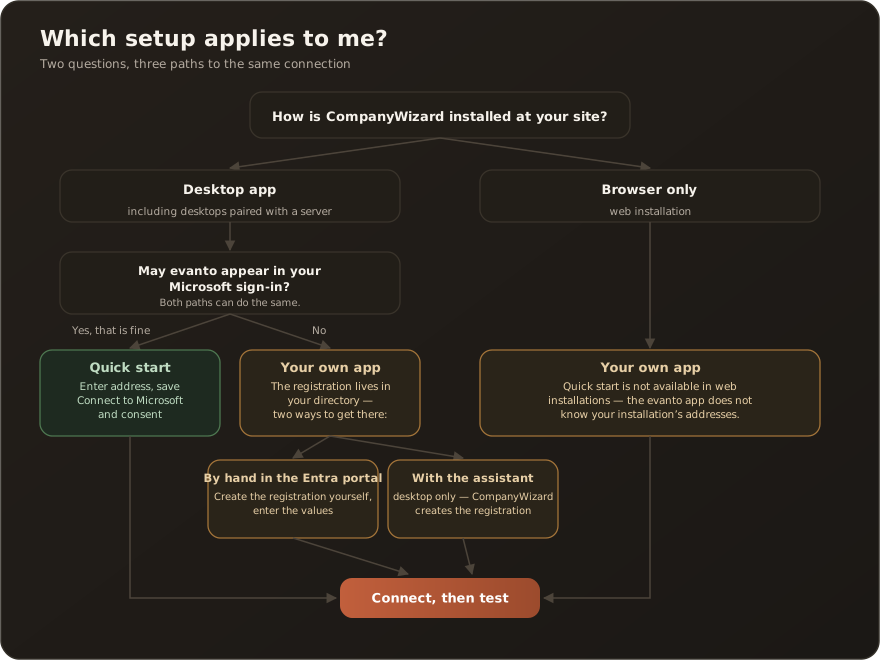
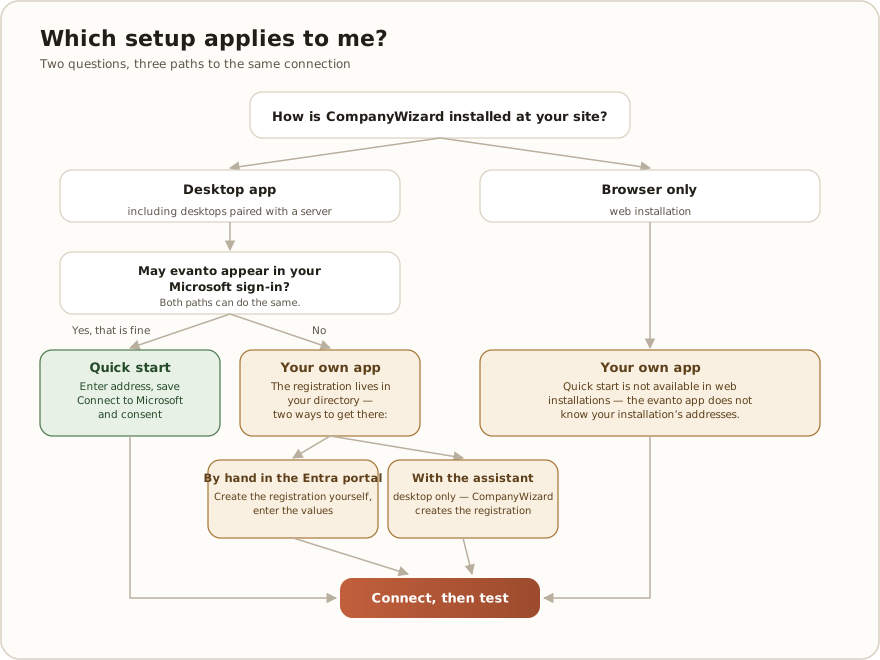
The same decision as a list:
- Does CompanyWizard run as a desktop app? (Including desktops paired with a server.) → continue with 2.
- May evanto appear in your Microsoft sign-in?
- Yes → Quick start. Enter the SharePoint address, connect to Microsoft and consent for the organization while doing so, done.
- No → Your own app. There are two ways to get there: create the registration by hand in the Entra portal — or have the provisioning assistant create it for you.
- Does CompanyWizard run in the browser only (web installation)? → Your own app, with no alternative. Quick start is not available there, and neither is the assistant.
- Every path ends the same way: “Save”, “Connect to Microsoft”, “Test connection” — see Connect and test.
Functionally the paths are equivalent — quick start can do everything your own app can. The only difference is whose app registration the sign-in runs on.
| Quick start | Your own app | |
|---|---|---|
| Label in the form | ”Quick start — via evanto’s app" | "Your own app — your organization registers its own Microsoft app” |
| Your effort | grant consent once, organization-wide | register an app (by hand or via the assistant), enter the values |
| Works in | desktop installations only | desktop and web |
| evanto appears in the consent dialog | yes | no |
What rights does who need — and what lives at your site?
Section titled “What rights does who need — and what lives at your site?”That is the question that comes before choosing a mode, and it has a short answer: for the initial setup every path needs an administrator in your Microsoft directory, day-to-day operation needs nobody — and there is nothing from evanto to store anywhere.
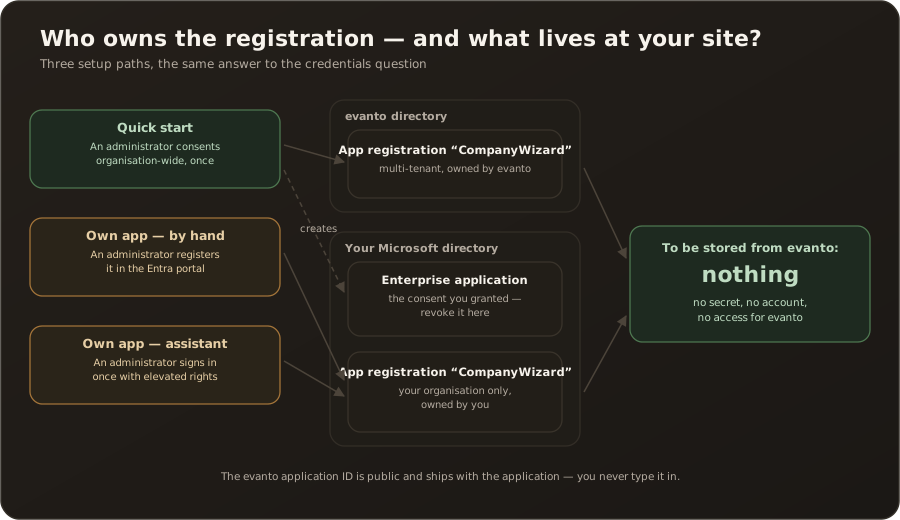
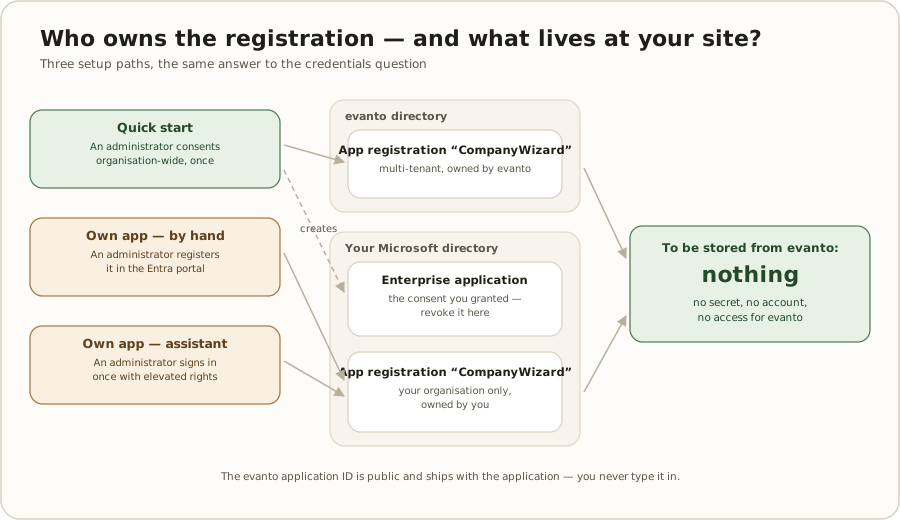
| Quick start | Own app — by hand | Own app — assistant | |
|---|---|---|---|
| Role for the initial setup | Cloud Application Administrator (for the consent) | Application or Cloud Application Administrator (register and consent) | Global Administrator or Application Administrator |
| Role for day-to-day operation | none | none | none |
| Credentials to be stored from evanto | none | none | none |
| Client secret | no (desktop signs in as a public client) | web installations only, as a server environment variable | only if you provide a web address; shown once |
| Where the app registration lives | in evanto’s directory | in your directory | in your directory |
| What is created in your directory | an enterprise application “CompanyWizard” (the consent you granted) | registration + enterprise application | registration + enterprise application |
| Revoking | remove the enterprise application “CompanyWizard” in Entra | remove the registration or withdraw the consent | as for “by hand” |
It cannot be done without an administrator — for two separate reasons
Section titled “It cannot be done without an administrator — for two separate reasons”If someone asks whether an ordinary user could consent themselves, it pays to keep two things apart:
- Microsoft’s permission flag: open. None of the six requested permissions requires admin consent by itself — as delegated permissions,
Files.Read.AllandSites.Read.Allare explicitly marked “admin consent required: no”. (Only their application variants are marked “yes” — and those are never requested.) - Your tenant’s consent policy: closed. Microsoft’s default today is the policy managed by Microsoft (“Let Microsoft manage your consent settings”). It lets users consent to many permissions themselves, but explicitly excludes
Files.Read.AllandSites.Read.All— as well as the mail and calendar permissions. Who publishes the app makes no difference. → App consent policies
In practice this means an administrator has to step in. There are two exceptions, both requiring a deliberate decision by your administrator and neither a recommended path: your tenant is still on the legacy “user consent for apps” policy — or your administrator switches to the “selected permissions” policy and classifies Files.Read.All/Sites.Read.All as low impact themselves. Neither exception reliably applies to the quick start: the evanto app is not publisher-verified, and the second policy only allows user consent for verified publishers and for apps registered in your own directory.
Path A — Quick start
Section titled “Path A — Quick start”Four steps, no Entra portal.
- Choose the mode — “Quick start — via evanto’s app”.
- Enter “Your SharePoint address”, e.g.
https://contoso.sharepoint.com(one URL per line), then “Save” — the button sits directly below the address field. - Click “Connect to Microsoft”. The Microsoft sign-in opens. Sign in with an account that has administrator rights in your Microsoft organization and tick “Consent on behalf of your organization” in the consent dialog — that grants access for the whole organization. You do not have to look up the tenant, Microsoft resolves it from your sign-in.
- “Test connection” — see Connect and test.
Path B automatic — have the registration created for you
Section titled “Path B automatic — have the registration created for you”If you want your own app but would rather not click through the Entra portal, CompanyWizard creates the registration for you. The result is the same as the manual path below: a registration in your directory that belongs to you.
The “Create registration automatically” button only appears when all four conditions hold:
- The installation runs as a desktop app.
- The mode is set to “Your own app”.
- None of the three identity values (application ID, tenant ID, mode) is pinned by the deployment configuration.
- You are a Global Administrator or Application Administrator in your Microsoft directory.
If you do not see the button, one of these conditions is not met — the manual path is right next to it, unchanged, and leads to the same result.
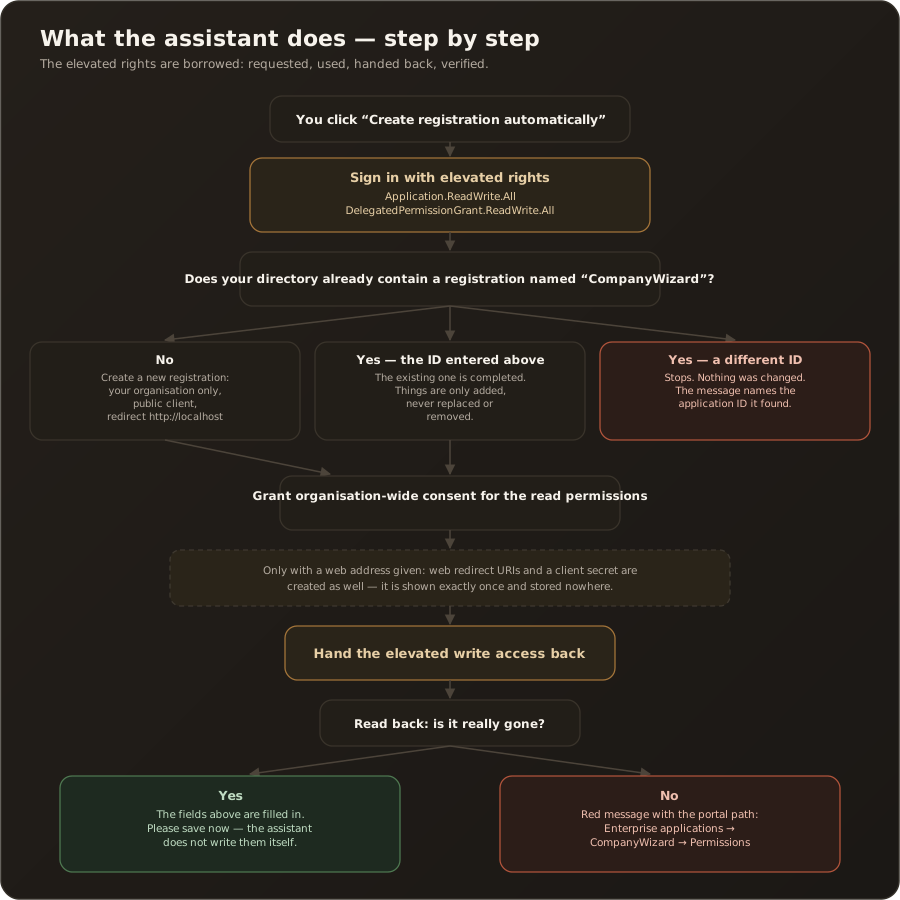
How it runs
Section titled “How it runs”- Optional: “Address of your web installation” — only if you also run a web installation. In that case the web redirect URIs and a client secret are created as well. Without an address no secret is created; the desktop needs none.
- Click “Create registration automatically”. A Microsoft sign-in opens in which you confirm elevated rights (see below).
- CompanyWizard creates the registration: your organization only (single tenant), public client, redirect
http://localhost— plus the web redirect URIs if you provided an address. - CompanyWizard grants the organization-wide consent for the read permissions. That removes the trip to the Entra portal for this step too.
- CompanyWizard hands the elevated write access back and checks that it is really gone.
- Save. The assistant only fills in the fields above — it does not save by itself. The message says so plainly: “Registration created. Please save now.”
- “Connect to Microsoft”, then “Test connection” — as on every path, see Connect and test. The assistant already granted the organization-wide consent in step 4.
The borrowed write access
Section titled “The borrowed write access”To create a registration, CompanyWizard needs write access to your directory for the duration of the run. That is the question your IT security team asks before approving the button — so the answer belongs here, not in the small print:
- What is requested:
Application.ReadWrite.AllandDelegatedPermissionGrant.ReadWrite.All, on the evanto application, at the moment you sign in with elevated rights. - What for: creating or completing the registration and granting the organization-wide consent. Nothing else.
- For how long: the duration of the run. Afterwards CompanyWizard withdraws both permissions — and then reads back whether they have really disappeared. Only then does the assistant report success. Microsoft does not show a freshly granted consent everywhere at once, so CompanyWizard waits up to about 45 seconds until it sees the rights and until they are gone again; meanwhile the button reads “Creating registration …”.
- In the elevated dialog, do not tick “Consent on behalf of your organization”. The assistant only needs the rights for your own account. With the box ticked they apply to every account in your organization for the duration of the run; and should handing them back fail, they would remain for everyone instead of just for you.
- If handing them back fails: you get a red message with the path to remove them yourself — Entra → Enterprise applications → CompanyWizard → Permissions. → Error messages
- Nothing of this remains in your directory. An ordinary user never sees these rights; after the run they are gone.
- Older versions: Up to version 0.88 a run could leave the rights in place and still report success when Microsoft was slow to show the fresh consent. If you used the assistant with such a version, check under Entra → Enterprise applications → CompanyWizard → Permissions whether
Application.ReadWrite.AllorDelegatedPermissionGrant.ReadWrite.Allare still listed. Running the assistant again with a current version removes such leftovers as well.
If you want to get rid of the evanto application entirely afterwards, there is a checkbox for it: “Remove the evanto application from my directory after creation”.
If “CompanyWizard” already exists at your site
Section titled “If “CompanyWizard” already exists at your site”Before creating anything, the assistant looks for a registration of that name and then decides:
| What it finds | What it does |
|---|---|
| nothing | creates a new registration |
| a registration whose application ID is the one entered in the form above | completes exactly that one — things are only added, never replaced or removed |
| one or more registrations with a different application ID | stops and changes nothing. The message names the IDs it found |
The third case is deliberate: entering the application ID is your confirmation that this registration belongs to this installation. To reuse the existing one, enter its application ID above and start the assistant again. → Error messages
Path B — Register your own app by hand
Section titled “Path B — Register your own app by hand”Your organization registers its own application in Microsoft Entra. This path works in every kind of installation — and it is the only one for web installations.
1. Create the registration
Section titled “1. Create the registration”- Sign in to the Entra portal → Identity → Applications → App registrations → New registration.
- Pick a name freely (e.g. “CompanyWizard”).
- Supported account types: Accounts in this organizational directory only (single tenant).
- Register — the overview page then shows the Application (client) ID and the Directory (tenant) ID. You need both in step 4.
2. Add the redirect URIs
Section titled “2. Add the redirect URIs”Under Authentication → Add a platform — only the rows that apply to your installation:
| Your installation | Platform in Entra | Redirect URI |
|---|---|---|
| Desktop | Mobile and desktop applications | http://localhost |
| Web | Web | https://<your-host>/api/integrations/microsoft/callback |
For desktop, also set “Allow public client flows” to Yes.
3. Grant the permissions
Section titled “3. Grant the permissions”Under API permissions → Add a permission, choose delegated permissions only:
- Microsoft Graph:
User.Read,Files.Read.All,Sites.Read.All,offline_access - Microsoft Graph, for calendars and mailboxes:
Calendars.Read,Mail.ReadWrite,Mail.ReadWrite.Shared,Mail.Send,Mail.Send.Shared→ Mailboxes with Microsoft 365 - SharePoint:
AllSites.Read,MyFiles.Read
An existing registration created before mailboxes needs the mail permissions added and then admin consent granted again — otherwise “Connect with Microsoft” on a mailbox reports that mail access is missing.
This list is also available as a copy field in the form, under “Required permissions (delegated)”.
Then choose “Grant admin consent for <your organization>”. Alternatively, grant the consent later in CompanyWizard: on the first “Connect to Microsoft” (after step 4) an administrator signs in and ticks “Consent on behalf of your organization” in the consent dialog.
What that consent means, and what it explicitly does not mean, is covered in What access the application has — the page for the conversation with your data protection officer.
4. Enter the values in CompanyWizard
Section titled “4. Enter the values in CompanyWizard”Back in Admin → System settings → “Microsoft Graph / SharePoint”:
- Enter the Application (client) ID from the Entra overview.
- Tenant ID (optional) — best enter the Directory (tenant) ID from the Entra overview right away. If you leave the field empty, CompanyWizard fills it in from the sign-in as soon as one exists (when connecting or at the latest on the first test) — but only in the form. Then save once more, and on the web reload the page afterwards; until then “Test connection” stays locked with the hint “Save first: …”. A value you entered yourself is never overwritten.
- Enter Your SharePoint address (
https://contoso.sharepoint.com, one URL per line). - Save.
- “Connect to Microsoft”, then “Test connection” — see Connect and test.
5. Web installations only: client secret
Section titled “5. Web installations only: client secret”Web installations additionally need a client secret (Entra: Certificates & secrets → New client secret). Desktop installations need none.
In web mode the whole of SharePoint usage hangs on it, not just the scheduled sync: folder picker, interactive import and connection test all draw their access tokens from the same server-side sign-in. Without the secret the interface reports that the Microsoft sign-in is not configured — and there is no file picker at all.
The secret is not entered in the user interface — it is set on the server as an environment variable:
MicrosoftGraph__ClientSecret=<the secret value>The form only names the variable. → Environment variables & appsettings
Trade-offs between the three paths
Section titled “Trade-offs between the three paths”All three lead to the same connection. What separates them is who holds it afterwards:
| Quick start | Own app — by hand | Own app — assistant | |
|---|---|---|---|
| Effort for the initial setup | lowest: one address, connect once | highest: registration, redirect URIs, permissions, consent | low: one button, then save |
| Whose consent dialog your users see | that of the evanto application | that of your own application | that of your own application |
| Where the Microsoft audit trail lives | in your directory (enterprise application), the registration itself at evanto | entirely in your directory | entirely in your directory |
| Who maintains the registration | evanto | you — including the client secret expiry for web | you — likewise |
| Web installation possible | no | yes | the registration yes (with a web address); the assistant itself runs on the desktop only |
| Elevated rights required | no | no | yes, once and only during the run |
| Switching later | possible at any time, but disconnects every existing connection | likewise | likewise |
As a rule of thumb: if nothing speaks against evanto appearing in the consent dialog, quick start is the shortest path. If the registration should belong to you, take the assistant — unless your organization does not allow an application to write to the directory at all, in which case the manual path remains.
Connect and test
Section titled “Connect and test”Whichever path you took: it ends with three buttons, in this order.
- “Save” — directly below the address field. “Connect to Microsoft” does save unsaved changes by itself first; “Test connection”, however, only checks the saved state.
- “Connect to Microsoft” — signs you in to Microsoft and obtains the organization consent in the same step: an administrator ticks “Consent on behalf of your organization” in the Microsoft dialog. While the sign-in runs, the button reads “Connecting to Microsoft…”.
- Desktop: the sign-in opens in the system browser. Afterwards the browser shows “Anmeldung erfolgreich” with the English line “You are signed in. You can close this window and return to CompanyWizard.” If a SharePoint address is entered, a second Microsoft dialog follows for the SharePoint consent. If there is no answer after 3 minutes (for example because the browser tab was closed), CompanyWizard gives up and says so; no restart is needed.
- Web: the whole page moves over to Microsoft; one sign-in covers Microsoft Graph and SharePoint at once. Afterwards you land in the admin area on the Knowledge sync tab, where the “Microsoft connection for scheduled SharePoint syncs” card reports the result — “Microsoft connection established. …”. To test, switch back to system settings. On the web it is your own account that gets connected; every user connects once themselves.
- “Test connection” — checks the existing sign-in silently and never opens a sign-in window. The button is locked while no account is connected or changes are unsaved; the grey hint below it says why: “Connect first: …” or “Save first: …”.
Once the sign-in is in place, the page names the account: “Connected as … (tenant …).”
On the desktop, “Connect to Microsoft” is greyed out as soon as the connection is proven — account connected, result “Connection established. …”, nothing unsaved. That is deliberate: there is nothing left to connect. “Disconnect Microsoft account”, a change in the form or a different test result enable the button again; to connect a different account, disconnect, then connect. On the web the button always stays usable.
What the page reports
Section titled “What the page reports”After connecting, and on every test, the page reports in plain language what is still missing, instead of leaving you to guess at a file picker that does not work:
| Message | Meaning |
|---|---|
| ”Connection established. Access to sites and OneDrive.” | Done. |
| ”Access is in place. Your SharePoint address is still missing.” | Enter the address, save, test again. |
| ”Only your personal OneDrive can be searched, not team sites. …” | Sites.Read.All was not granted — nothing breaks, the selection is just narrower. |
| ”No SharePoint access token could be obtained for … with the account …. …” | The address and the account belong to different organizations, or the SharePoint consent is missing. |
| ”Your organization has not granted access yet.” | As an administrator, “Connect to Microsoft” again and tick the checkbox. |
| ”Not connected. Click ‘Connect to Microsoft’ first.” | There is no sign-in (any more). Connect. |
| ”The sign-in was canceled or timed out. …” | Only when connecting on the desktop: not carried through. Connect again. |
Every one of these messages — and every error message that can appear instead — is listed with cause and fix in Microsoft connection error messages.
Changing things later
Section titled “Changing things later”On the web, after saving a changed application ID, tenant ID or mode, the page also reports “Client ID changed — reload the page for the SharePoint sign-in to use the new app registration.” The reason: the page’s Microsoft wiring is set up as it loads, using whichever values are stored at that moment; new values only take effect after a reload. So reload the page before you click “Connect to Microsoft”. Reloading is enough; no restart is needed. The desktop picks up the values without a reload.
Related
Section titled “Related”- What access the application has — permissions, delegated access, data protection
- Microsoft connection error messages
- Get documents from SharePoint — the user’s view
- Set up knowledge sync — sync SharePoint folders on a schedule
- Environment variables & appsettings