Installation & first launch
UserIn four steps you are ready to go: download, install, first launch, sign in. It takes a few minutes.
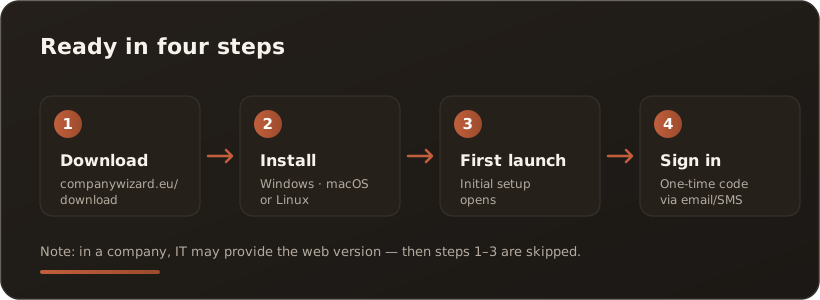
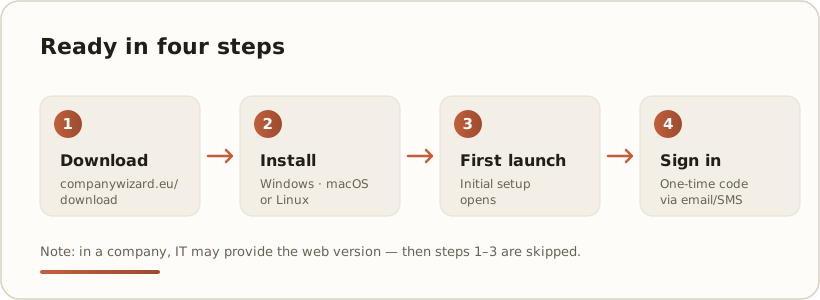
Web or desktop? This guide describes the desktop app for Windows, macOS and Linux — the typical entry point for single workstations. If your IT provides the web version, you don’t need to install anything: you get a link and start straight at First sign-in.
1. Download
Section titled “1. Download”Open companywizard.eu/download and choose the installer for your operating system:
- Windows —
Setup.exeinstaller package, one each for x64 (Intel/AMD) and ARM64 (e.g. Snapdragon) - macOS —
.pkginstaller package, one each for Apple Silicon and Intel. Below each there is a.dmgas a drag-and-drop alternative. - Linux —
.debfor Debian/Ubuntu and.rpmfor Fedora/RHEL, each for x64 and ARM64.
Not sure which macOS variant? Apple menu → About This Mac: if it lists an Apple M… chip, take Apple Silicon, otherwise Intel.
.pkgor.dmg? If in doubt, the.pkg: it installs CompanyWizard in the right place, and your IT can roll it out via MDM. The.dmgis for anyone used to dragging Mac apps into Applications themselves. Both contain the same app.
Not sure which Windows variant? Settings → System → About → System type: if it says “ARM-based processor”, take ARM64, otherwise x64.
Not sure which Linux variant? The terminal command
uname -mshowsx86_64for x64 andaarch64for ARM64.
2. Install
Section titled “2. Install”Windows: double-click the setup file and follow the wizard. CompanyWizard then appears in the Start menu. The beta setup is not signed yet, so Windows SmartScreen warns when you start it — continue the installation via More info → Run anyway.
macOS (.pkg): double-click the .pkg file and follow the installer. CompanyWizard is placed in the Applications folder automatically. The package is notarised by Apple — no right-click → Open detour needed.
macOS (.dmg): double-clicking the .dmg file opens a window with CompanyWizard and a shortcut to Applications. Drag CompanyWizard onto that shortcut, eject the image afterwards (click ⏏ in the Finder sidebar) and start the app from the Applications folder. The .dmg is notarised too, so the first start needs no detour.
Don’t start it from the opened window. That window shows the contents of the image, not your disk. An app started from there is gone once you eject it and nowhere to be found next time. Always drag it into Applications first.
Linux: install the package through the package manager so dependencies such as WebKitGTK come along automatically:
sudo apt install ./companywizard_<version>_amd64.deb # Debian/Ubuntusudo dnf install ./companywizard-<version>-1.x86_64.rpm # Fedora, RHEL/Rocky/Alma 10On ARM64 the files are called …_arm64.deb and ….aarch64.rpm. CompanyWizard then appears in the application menu.
- RHEL/Rocky/Alma 10: WebKitGTK is only available from EPEL there. Run
sudo dnf install epel-releasefirst. - RHEL/Rocky/Alma 9 is not supported — the required WebKitGTK version is missing there.
- Don’t use
dpkg -iorrpm -i: these commands don’t resolve dependencies, and the app then won’t start. - The packages are not signed, and there is no package repository. Compare the SHA-256 checksum from the download page with
sha256sum <file>.
3. First launch
Section titled “3. First launch”On first launch a short initial setup walks you through the basic configuration. After that you land directly at the sign-in screen. What the wizard asks for in detail (administrator, SMTP, LLM API key, RAG, PII protection …) is described step by step in Configure a single workstation.
4. Sign in
Section titled “4. Sign in”Signing in is passwordless: you receive a one-time passcode by email (or SMS). Your account is created as administrator during initial setup. How exactly this works — and how to activate your free license — is covered in First sign-in (OTP).
System requirements (short version)
Section titled “System requirements (short version)”- Windows 10 or 11 (x64), or Windows 11 on ARM64.
- macOS 13 (Ventura) or later.
- Linux: Debian 12, Ubuntu 22.04 or 24.04 (
.deb); Fedora 41 or later, RHEL/Rocky/Alma 10 with EPEL (.rpm). RHEL 9 is not supported. - Internet connection for AI requests to your chosen provider (local models optional, then offline use is possible).
- Details and multi-user/server scenarios: see the Installation scenarios reference.
- Access & building blocks: which API keys and building blocks you need to run it is summarized in What you need to run it.